Track versions and changes
Brava keeps every version of a record. You can see the list of versions, open any one of them, and compare two versions to see exactly what changed. Everyone who can read a record can see its versions, except its drafts: only Officers and above see drafts. See Access levels and permissions.
See a record’s versions
Open the record, and select its version under the title, for example Version 2.0. On a phone, the version is in View details.
Version history lists each version, newest first, with the date it was approved and who approved it. Select a version to open it.
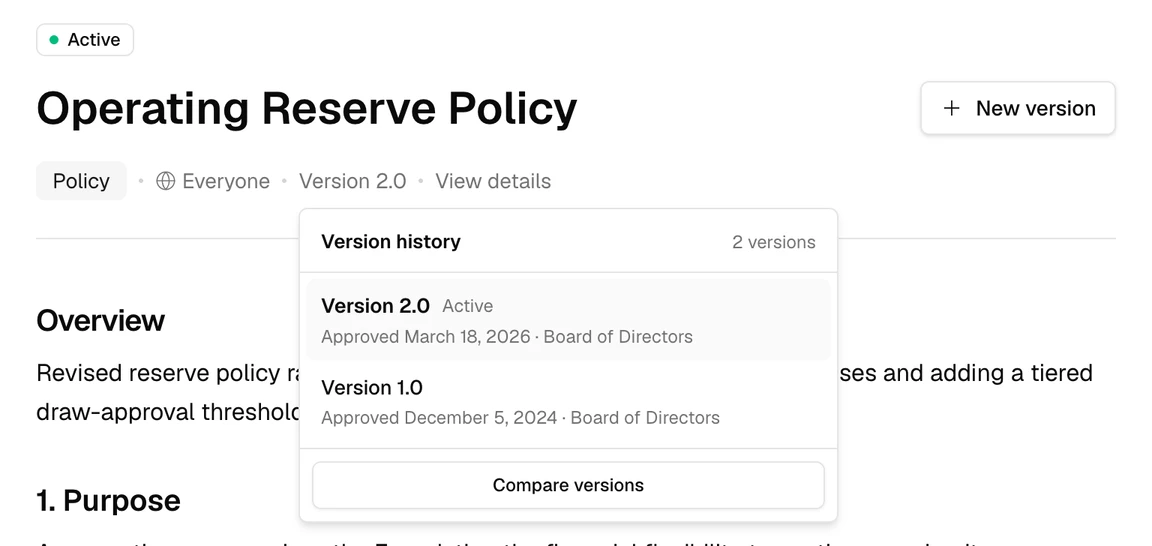
Compare two versions
- In Version history, select Compare versions. Brava chooses the two newest versions to start with.
- To compare two other versions, select the two you want.
- Select Compare.
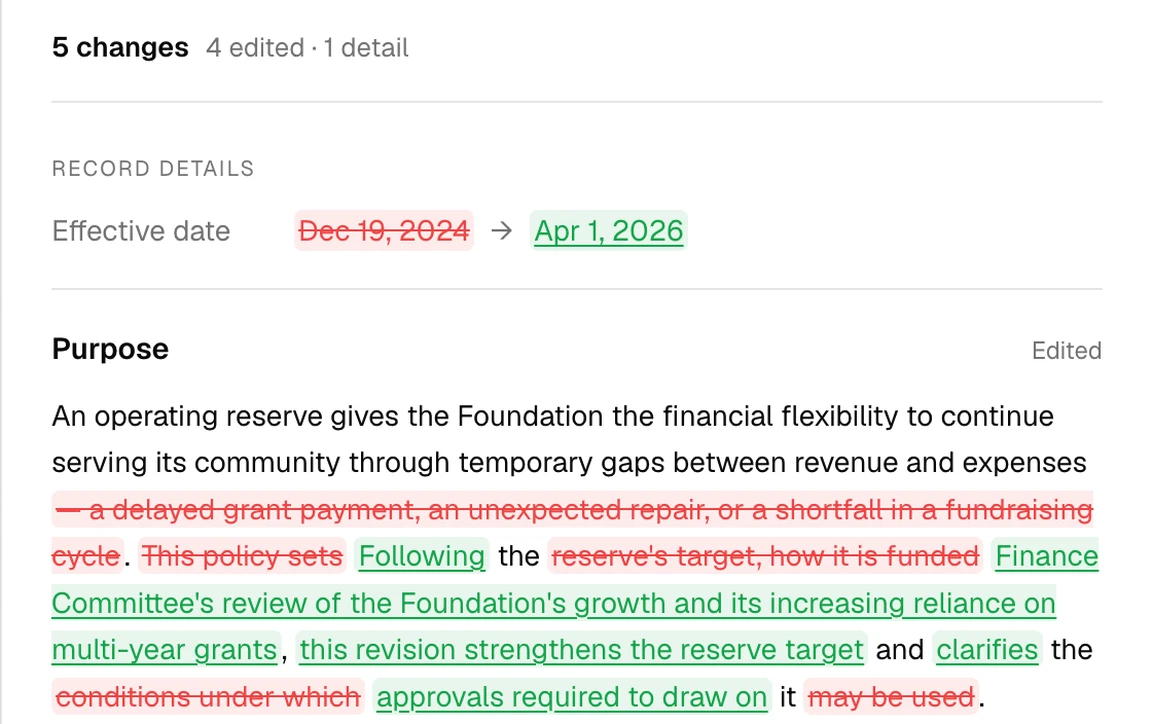
Brava shows how many things changed, then each change in turn. Removed words are struck out in red, and added words are underlined in green. Each changed section is marked Edited, New section, Removed, Moved, or Retitled.
Review a proposal’s changes
A proposed version shows View changes under its title, and on its pending decision in the meeting’s agenda. View changes compares the proposal with the active version. See Propose and approve a record.
Start a new version
To change a record, open its active version and select New version. See Propose and approve a record.