Build the agenda
A meeting’s agenda lists what the meeting will cover, item by item, in order. Each item can have a presenter, a time, a description, attached files, and linked records. Attendees see the agenda, with its files and records, once you send the materials.
You can change an agenda while the meeting is a draft or scheduled, until its materials are sent. To change it after that, first withdraw the materials.
Who can do this
Officers and above build agendas. Only Admins and Super Admins can delete an agenda item, or remove its files and linked records.
Add the items
Open the meeting, and add each item in turn. The numbers in the picture below match steps 1 to 3.
- Select Add agenda item, and type the item’s title.
- Select Add presenter, and choose a member. For someone from outside your organization, type their name and select Add with their name.
- Select Add time, and enter the number of minutes the item will take.
- To add a description, select the arrow at the left of the item, and write under its title.
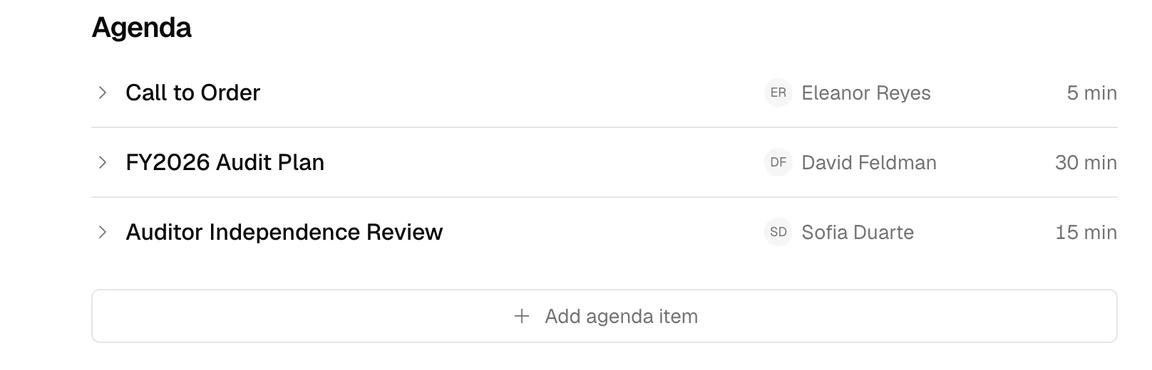
To change the order of the items, drag an item by the handle at its left.
Add files and records
Each agenda item can carry files and linked records. To add one, point to the item, and select + at its left. This menu opens:
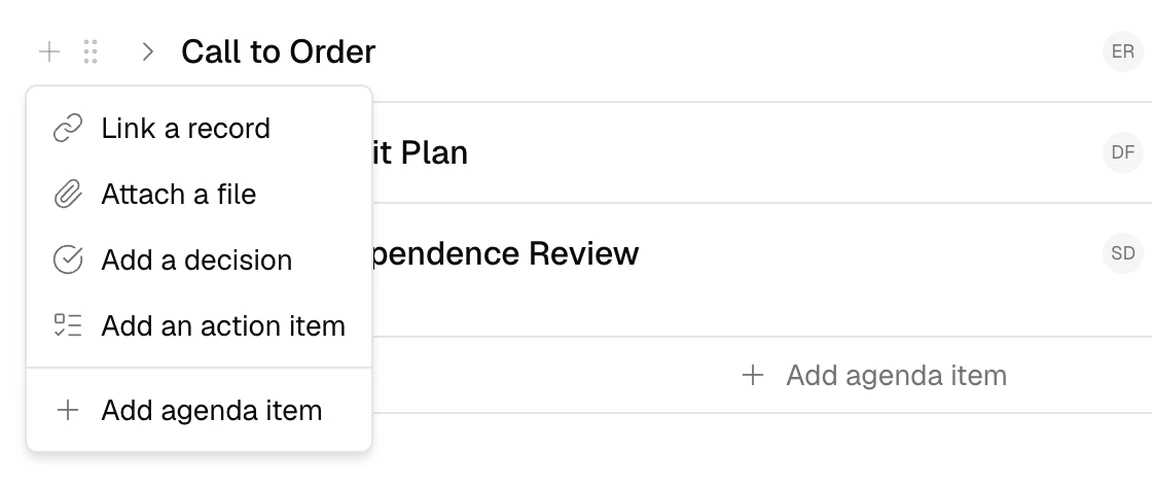
- Attach a file: choose one or more files from your computer, up to 100 MB each.
- Link a record: search for the record, choose it, and select Link.
- Add a decision or Add an action item: see Add a decision and Assign an action item.
Attendees see a linked record only if they are allowed to read it. A record that is proposed for approval at this meeting shows Proposed. The meeting’s attendees can read the proposal once the materials are sent. See Propose and approve a record.
What can go wrong
I can’t change the agenda. Why?
The materials have been sent. Withdraw the materials, make your changes, and send the materials again.
I can’t delete an agenda item. Why?
Only Admins and Super Admins can delete an agenda item, or remove its files and linked records.