Assign an action item
An action item is a task that comes out of a meeting: what needs doing, who is doing it, and by when. You add action items to a meeting or to its minutes, and Brava emails the person you assign. That person marks the action item complete when the task is done.
Who can do this
Officers and above assign action items. Anyone can complete an action item assigned to them. See Access levels and permissions.
Assign an action item
- Start the action item in one of two places:
- On the meeting page: point to the agenda item, select +, then Add an action item.
- In the minutes: point to the Action items section, select +, then Add an action item.
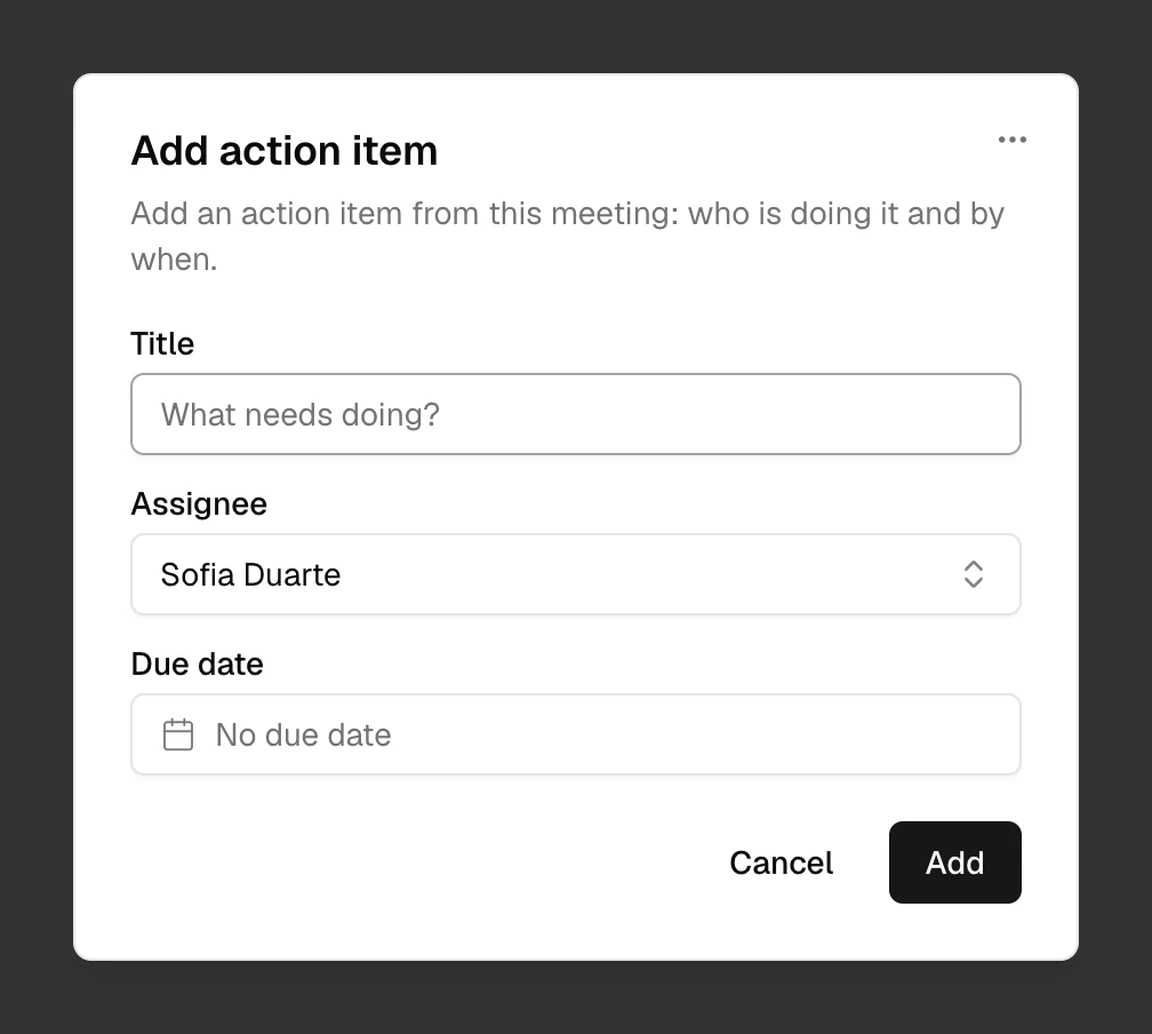
- Under Title, say what needs doing.
- Under Assignee, choose the person who will do it. For someone who is not in Brava, type their name and select Assign to with their name.
- If the task has a due date, choose it under Due date.
- Select Add.
What Brava does next
- Brava emails the assignee, unless you assigned the action item to yourself or to someone who is not in Brava. The email says who assigned it, what it is, which meeting it comes from, and when it is due, with a View in Brava button.
- The action item appears on the assignee’s Home page, under Action items. Once its due date passes, it is marked Overdue.
- If you change the assignee to another member, Brava emails the new assignee too.
Complete an action item
When the task is done, mark the action item complete. On your Home page, under Action items, select Open, then Mark complete.
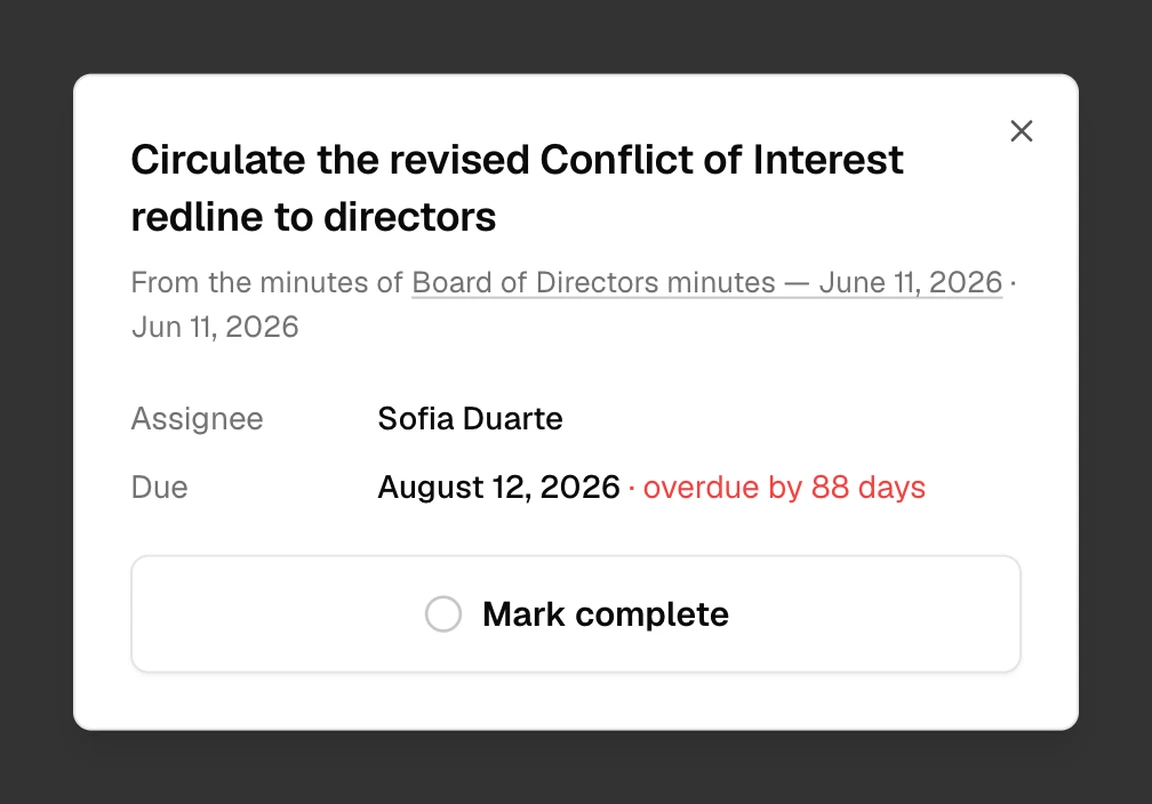
Officers and above can also complete an action item by selecting the circle beside it on the meeting page or in the minutes.
Brava shows who completed the action item and when, for example “Completed Nov 8 by Sofia”. It sends no email.
Reopen, change, or delete an action item
Officers and above can open an action item from the meeting page or the minutes, and then:
- Reopen it: select Reopen.
- Change it: change the Title, Assignee, or Due date, and select Save. A completed action item must be reopened before you can change it.
- Delete it: select More actions (⋯), then Delete action item, and confirm. Only Admins and Super Admins can delete an action item.
What can go wrong
I can’t add an action item to a completed meeting. Why?
Once a meeting is completed, add its action items in its minutes. Open the meeting’s minutes, and add the action item there.
I can’t change an action item in the minutes. Why?
While the minutes are awaiting approval, the action item cannot change until they are approved or rejected. You can still complete it or reopen it.
The assignee didn’t get an email. Why?
Brava emails only members, and never the person who made the assignment.