Create a record
You can start a record from a blank page, or have Brava draft records from files your organization already has, such as PDFs and Word documents. Either way, the new record starts as a draft in your Workspace. It becomes part of your organization’s official records once it is approved.
Who can do this
Officers and above create records. See Access levels and permissions.
Start a record
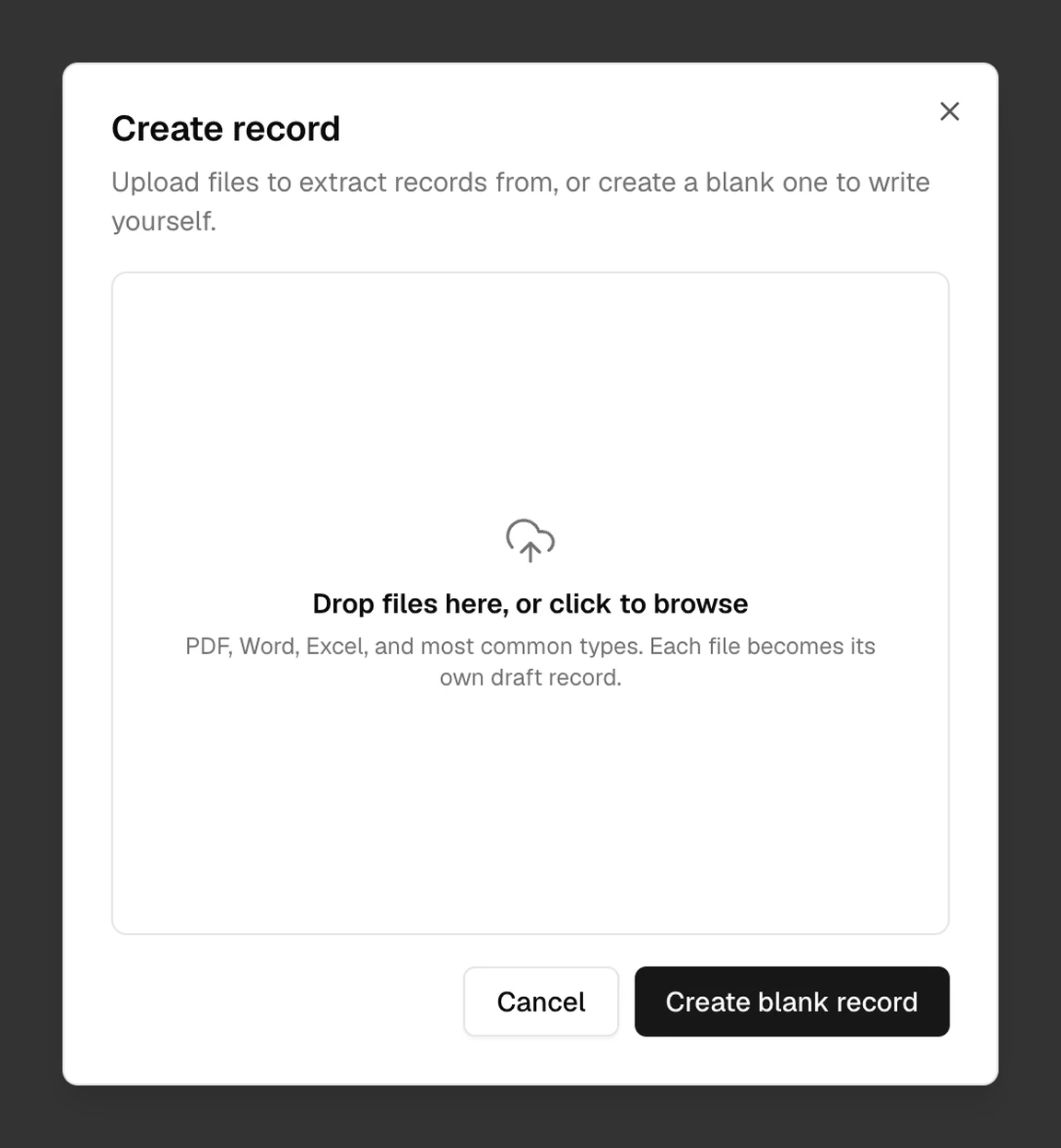
Open Records, and select Create record. You can also press ⌘K (Ctrl+K on Windows), and choose New record. The Create record dialog opens:
Create a blank record
Select Create blank record. Brava opens the new draft. Give the draft a title, choose its Type, and write it.
Create records from files
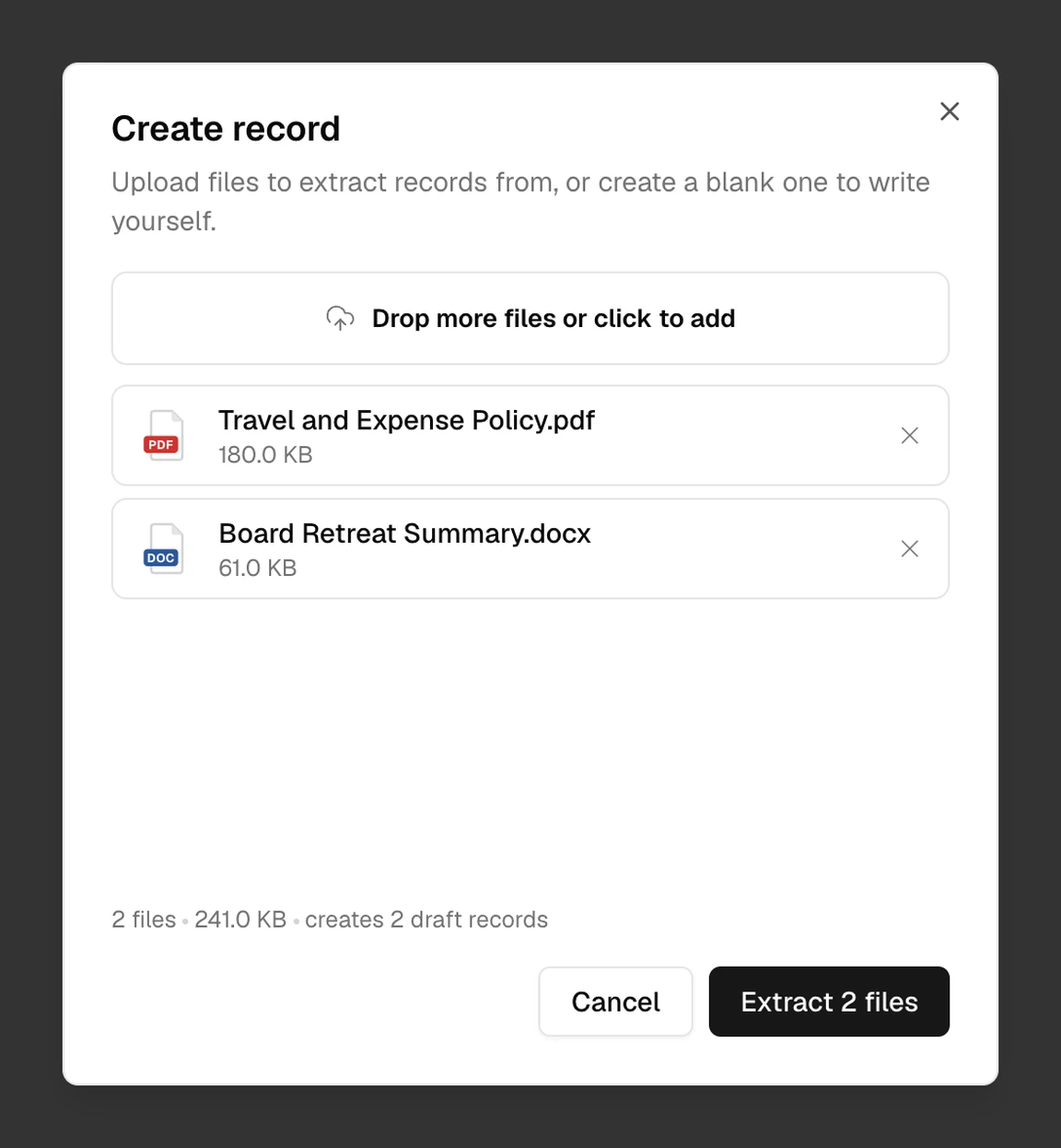
Brava reads each file you add and drafts a record from it. Each file becomes its own draft record.
- Drop the files in the box, or select the box to choose them. PDF, Word, Excel, and most common types of file work, up to 100 MB each.
- Select Extract, which shows the number of files, for example Extract 2 files.
A panel at the bottom right of the screen shows the progress of each file. When the panel says the records are created, you will find them in your Workspace. Each record keeps its file as its source.
What Brava does next
The draft is yours to finish. Before you propose it, check its title, type, and text, and name its owner in View details. Its approver starts as your organization’s main board group. When the draft is ready, follow Propose and approve a record.
To delete a draft you no longer need, open Workspace, select More actions (⋯) beside the draft, then Delete draft, and confirm. Brava deletes the draft’s source file too.
What can go wrong
Brava can’t read my file. What do I do?
Save the file as a PDF or Word document, and add it again.
My file is too large. What do I do?
Files can be up to 100 MB. Split the file, or make it smaller.
Brava could not create a record from my file. What now?
Select Retry beside the file in the panel.