Take attendance
Attendance shows who was present at a meeting and who was absent. Brava fills it in when the meeting is completed, and you correct it from the meeting page. When you create the meeting’s minutes, they list the attendance in their Attendance section.
Who can do this
Officers and above take attendance. See Access levels and permissions.
Before you begin
The meeting must be completed. See Complete or cancel a meeting.
Take attendance
-
Open the meeting, and select the attendance summary under its title, for example “5 of 5 present”.
-
Beside each person, choose Present or Absent.
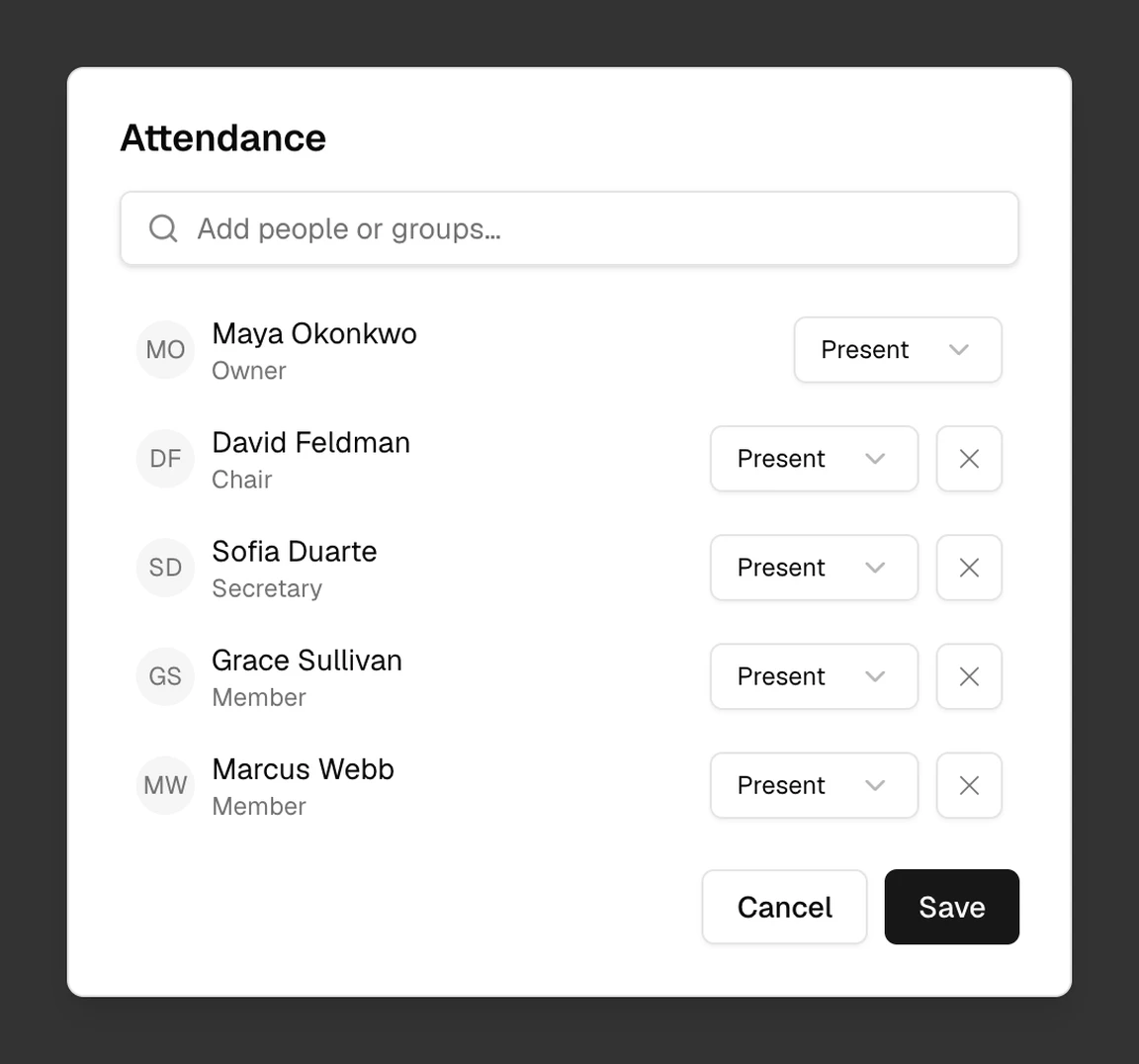
The Attendance dialog, with Present marked beside one person. -
To add someone who came but was not invited, search for them, or type a guest’s name and select Add with their name. Brava marks them Present.
-
Select Save.
What Brava does next
When you create the minutes, their Attendance section lists who was present and who was absent. From then on, you change attendance in the minutes instead of on the meeting: in the draft minutes, select the Present or Absent line.
While the minutes are proposed for approval, attendance is locked until the minutes are approved or rejected. After the minutes are approved, start a new version of the minutes to change the attendance.
What can go wrong
The Attendance dialog shows only Close. Why?
The meeting already has minutes, so the dialog links to them instead, with “Attendance is in the minutes”. Change the attendance there.
Nobody is listed, and there is no summary to select. Why?
Add the attendance from the minutes instead.