Set up your profile
Your profile holds your name, your photo, and your time zone, and the settings for how you sign in: your email address, your password, and two-factor authentication. Each member sets up their own profile. To open yours, select your name at the bottom of the sidebar, then Profile.
What you can change
The profile page has four parts. The numbers below match the numbers in the picture that follows.
- Your photo: select Add photo, move and zoom the photo inside the circle, and select Save photo.
- Your name and time zone: change First name, Last name, Preferred name, or Time zone. Brava saves each change when you leave the field. Brava writes the times in your meeting emails in your time zone.
- Your email address and password: see Change your email and Change your password below.
- Two-factor authentication: see Turn on two-factor authentication below.
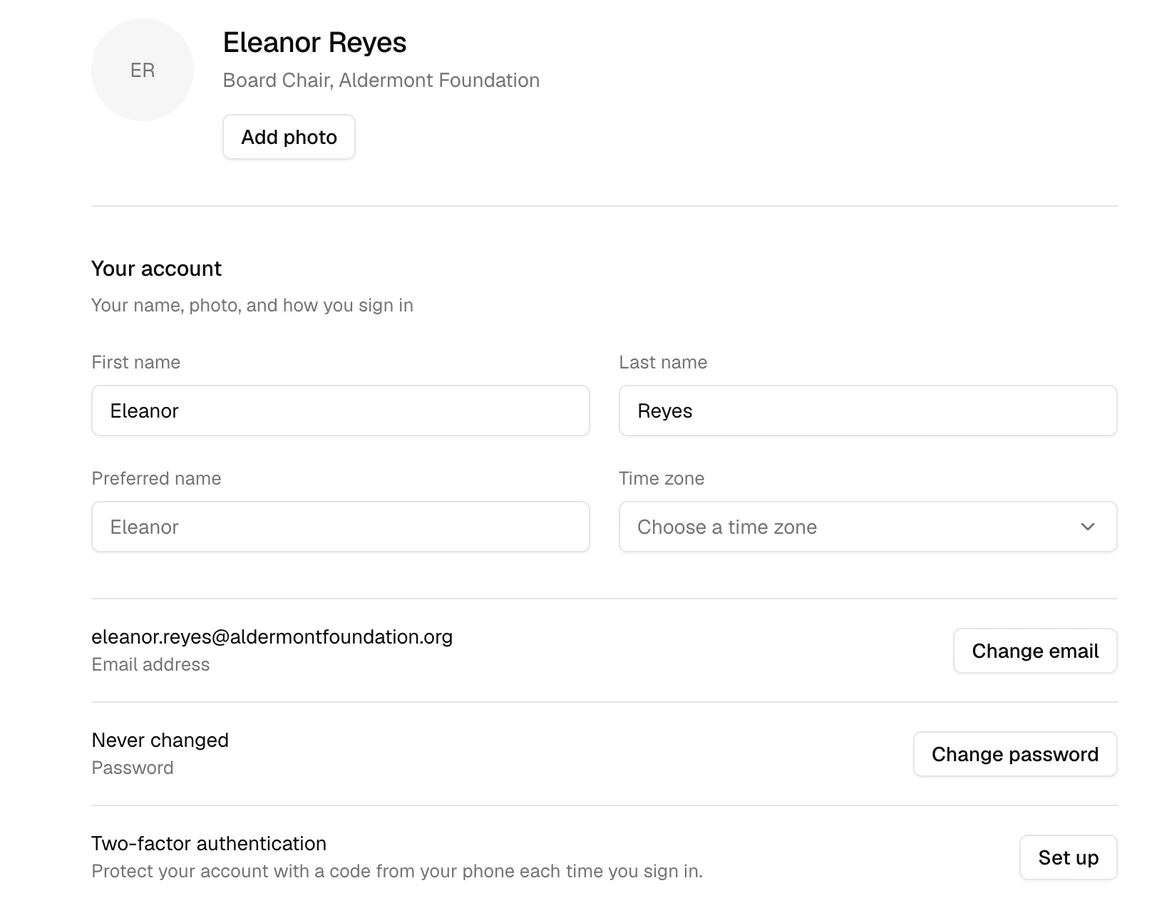
Further down the page, in the On this board section, you can add your Board title, Employer, and Job title. Everyone in your organization can see them. Your Term and Committees are set by an administrator.
Change your email
Your email address is how you sign in, so Brava asks you to confirm a new address before it changes.
- Select Change email.
- Enter your New email address, and select Send confirmation link.
- Open the email Brava sends to your new address, and select Confirm this address.
Your current address keeps working until you confirm the new one. Brava also emails your current address to tell you about the change. To stop the change before it is confirmed, select Cancel email change on your profile.
Change your password
- Select Change password.
- Enter your Current password, then your New password twice.
- Select Change password.
You stay signed in on the device you are using. Brava signs you out everywhere else.
Turn on two-factor authentication
Two-factor authentication adds a second step when you sign in. As well as your password, Brava asks for a code from an authenticator app on your phone. You need an authenticator app on your phone before you start.
- Beside Two-factor authentication, select Set up.
- Scan the code on the screen with your authenticator app. If you cannot scan it, type the key shown under the code into the app instead.
- Enter the six-digit code the app shows, and select Verify.
To turn two-factor authentication off, select Turn off two-factor, then select Turn off two-factor again to confirm.