Sign in
You sign in to Brava with your email address and a password, or with your Google account. The first time, you choose your password from your invitation. After that, you sign in at app.brava.so, and you can reset your password if you forget it.
Accept your invitation
When an administrator invites you, Brava sends you an email. The link in the email works for 7 days.
- Open the invitation email, and select Set Your Password.
- Choose a password, and select Set password.
Brava signs you in and opens Home. From then on, sign in with your email address and the password you chose.
Sign in with your email
Once you have a password, this is how you sign in each time.
- Go to app.brava.so.
- Enter your Email and Password.
- Select Sign in.
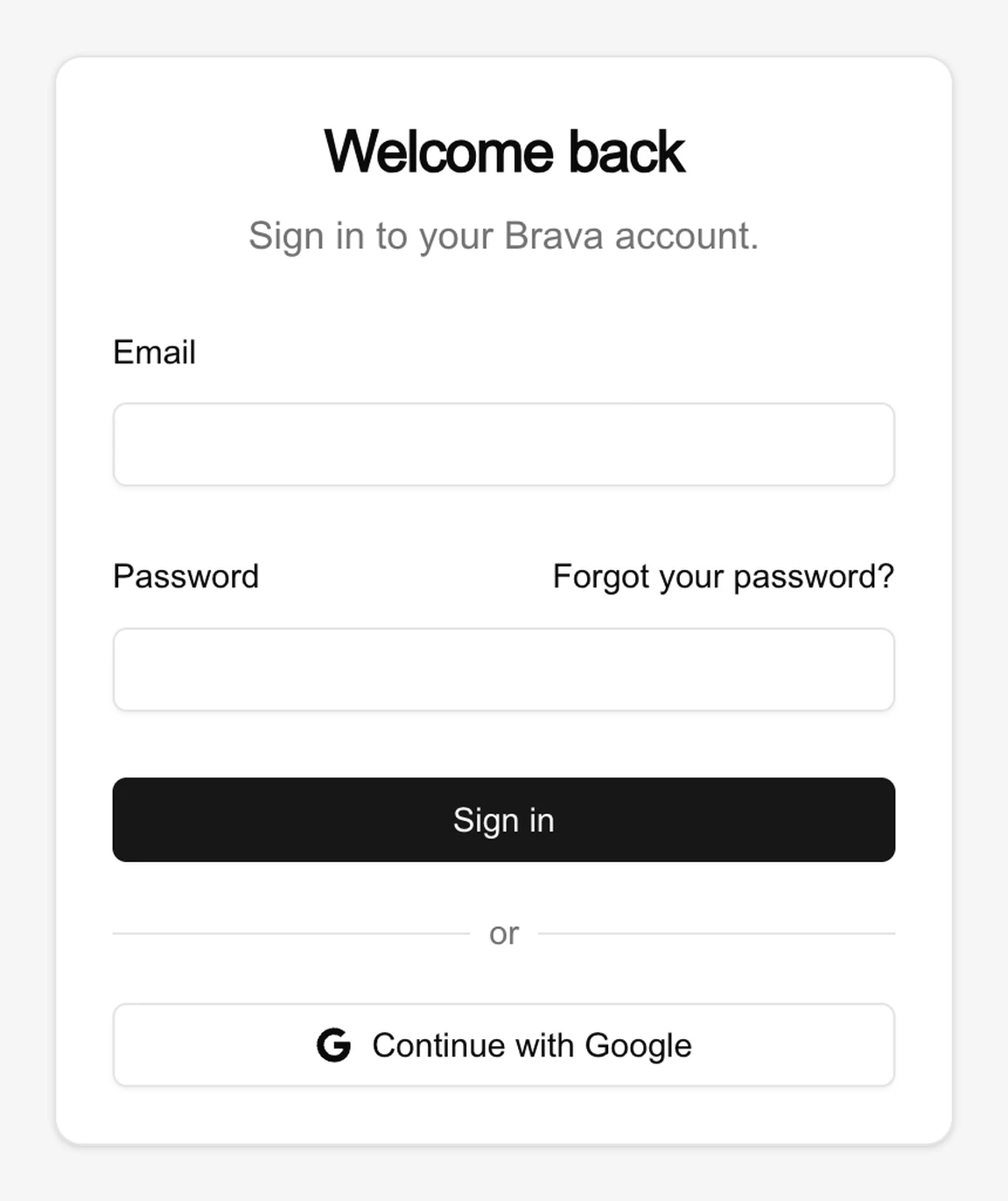
If you opened a link to a page in Brava, such as a meeting, Brava takes you to that page after you sign in.
Sign in with Google
You can also sign in with your Google account instead of a password. On the sign-in page, select Continue with Google, and choose your Google account.
Enter your two-factor code
If you turned on two-factor authentication, Brava asks for a code each time you sign in, after your password. Open the authenticator app on your phone, enter the six-digit code it shows, and select Verify.
To turn two-factor authentication on or off, see Set up your profile. If you lose the phone with your authenticator app, contact Brava support.
Reset a forgotten password
If you forget your password, Brava can email you a link to choose a new one.
- On the sign-in page, select Forgot your password?
- Enter your email address, and select Send link.
- Open the email “Reset your Brava password”, and select Reset Password.
- Choose a new password, and select Save password.
Brava signs you in with your new password.
If the email doesn’t arrive within a few minutes, check your spam folder, and check that you used the address your invitation was sent to.
Sign out
To sign out, select your name at the bottom of the sidebar, then Sign out. Brava asks you to confirm: select Sign out again.
What can go wrong
Brava says my email or password is wrong. What do I do?
Brava shows this message whenever it cannot sign you in. Check both, or reset your password.
My two-factor code didn’t work. Why?
Codes from an authenticator app expire quickly. Enter the newest code the app shows.
My reset link doesn’t work. What now?
The link has been used already, or it is too old. Start again from Forgot your password?
My invitation link doesn’t work. What now?
The link has been used already, or it is more than 7 days old. Ask an administrator of your organization to send the invitation again.