Add a decision
A decision in Brava keeps what was decided, who decided it, and when. You can add a decision that has already been made, or plan a decision for a meeting and enter its outcome after the meeting. Approving a record also makes a decision of its own: see Propose and approve a record.
Who can do this
Directors and above add decisions that have been made. Officers and above plan decisions for meetings, enter their outcomes, and delete them while they are pending. See Access levels and permissions.
Add a decision that has been made
- Open Decisions, and select Add a decision.
- Under Decided by, choose the person or group that made the decision.
- Under Decided on, choose the date. The date cannot be in the future.
- Enter the Title and the Text of the decision.
- Under Outcome, choose Approved, Rejected, or Tabled.
- Select Save.
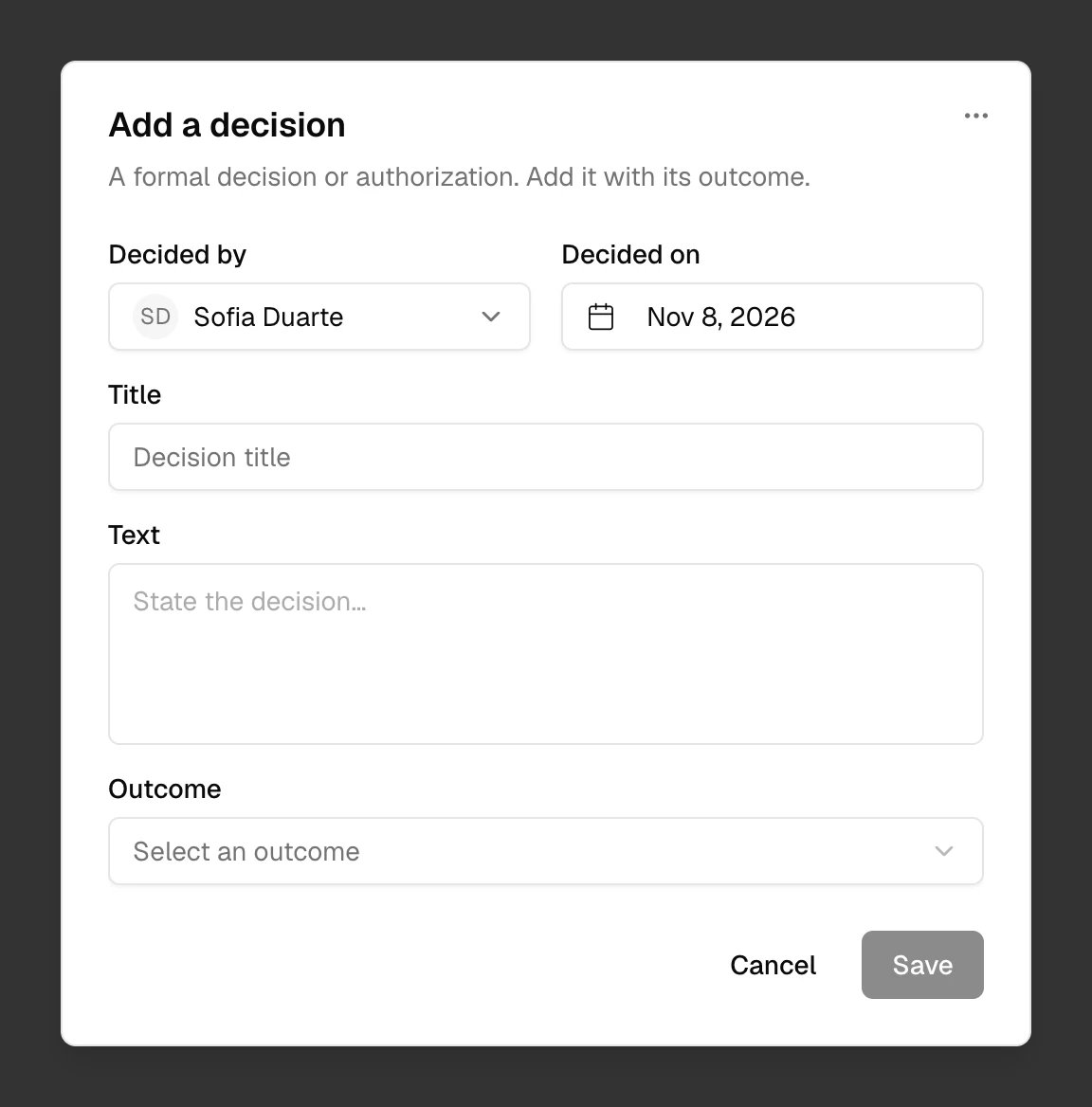
The decision appears on the Decisions page.
Plan a decision for a meeting
When you know a decision will come up at a meeting, you can add it to the agenda beforehand, and enter its outcome after the meeting.
Before you begin
The meeting must be a draft or scheduled, and its materials must not be sent yet. Once a meeting is completed, add its decisions in its minutes instead: see Take minutes.
Add the decision to the agenda
- Open the meeting. Point to the agenda item, select +, then Add a decision.
- Enter the Title. You can write the Text now, or after the meeting.
- Select Add decision.
The decision waits under its agenda item, marked Pending. Each agenda item can hold one planned decision.
Enter the outcome
- Open the pending decision. You can find it in three places:
- on the meeting page, under its agenda item;
- on the Decisions page, under Pending decisions: select Open;
- on your Home page, under Decisions: select Open.
- In the Enter the decision dialog, check that the Title and Text match what was decided.
- Check Decided by and Decided on. The date starts as the meeting’s date.
- Under Outcome, choose Approved, Rejected, or Tabled.
- Select Save.
What Brava does next
- The Decisions page lists every decision that has an outcome, newest first. You can search the list, or select Filter to narrow it by type, outcome, or date.
- The meeting’s draft minutes list the meeting’s decisions.
- Brava sends no email about a decision.
Delete a pending decision
You can delete a decision only while it is pending. Open the pending decision, select More actions (⋯), then Delete decision, and confirm.
A decision that came from a proposed record cannot be deleted this way. It is withdrawn along with its record instead.
What can go wrong
I can’t add a decision to a completed meeting. Why?
Once a meeting is completed, add its decisions in its minutes. Open the meeting’s minutes, and add the decision there.
I can’t change a decision in the minutes. Why?
While the minutes are awaiting approval, the decision cannot change until they are approved or rejected. Once the minutes are approved, start a new version of the minutes to change the decision.