Take minutes
Brava drafts the minutes from the meeting, with the attendance, a section for each agenda item, the decisions, the action items, and the Zoom transcript when there is one. You edit them, then propose them for approval. Minutes are a record in Brava, like a policy or a budget, so they are approved the same way.
Who can do this
Officers and above create and edit minutes. The minutes’ owner, or an Admin or Super Admin, proposes them for approval. See Access levels and permissions.
Before you begin
The meeting must be completed. See Complete or cancel a meeting. It is best to take attendance first, so that the minutes start with the right list.
Create the minutes
-
Open the meeting, and select Create minutes.
-
Check the Title, and select Create minutes.
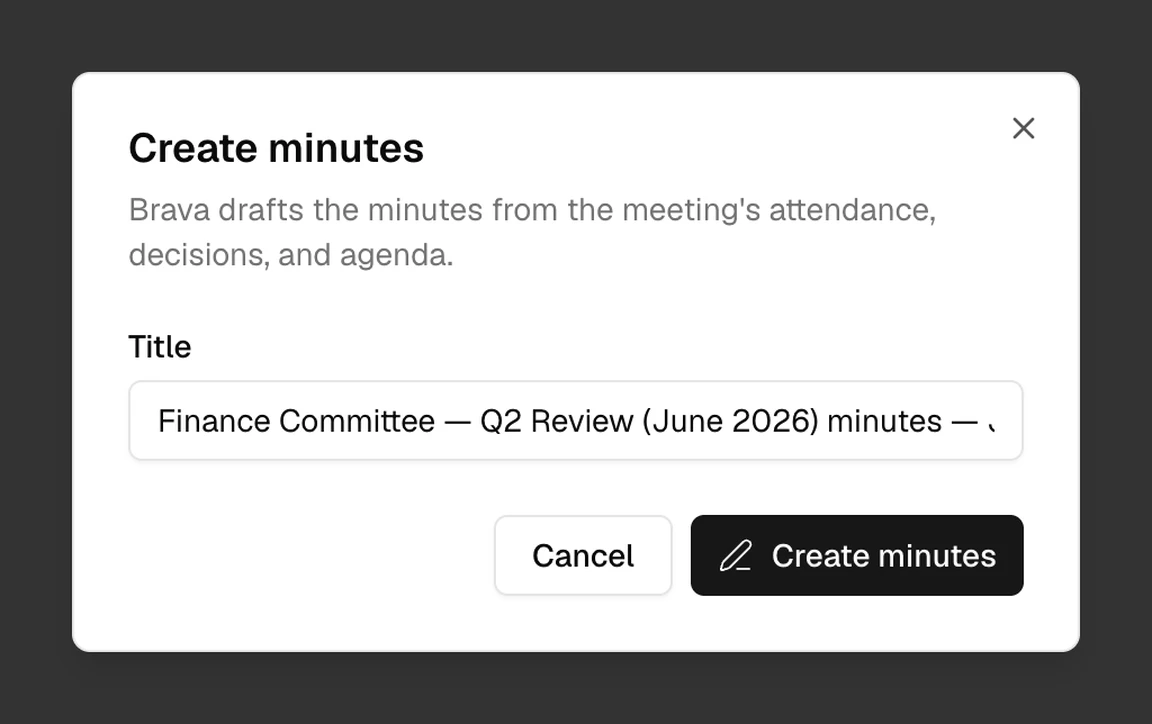
The Create minutes dialog. -
Select Open minutes.
The minutes open as a draft, with you as their owner. The draft already holds:
- Attendance: who was present and who was absent.
- A section for each agenda item, for your notes.
- Decisions: the decisions made at the meeting.
- Action items: the action items from the meeting.
If the meeting was on Zoom, Brava can draft the minutes from its transcript and the meeting’s materials instead. The draft then holds what was said under each agenda item, with suggested decisions and action items. See Zoom.
Edit the minutes
The draft is yours to finish. In the draft, you can:
- Write your notes under each agenda item’s section.
- Add a decision or an action item: point to the Decisions or Action items section, select +, then Add a decision or Add an action item. Each one takes effect at once. A decision appears on the Decisions page, and Brava emails an action item’s assignee.
- Enter a pending decision: select the decision, and enter its outcome.
- Check a suggestion from the transcript: each suggestion is marked “Suggested from the transcript”. Select Add to keep a suggestion, or Dismiss to leave it out.
- Change the attendance: select the Present or Absent line.
- Cite a record: point to a section, select +, then Link record. The record is listed under “Records cited”.
Propose the minutes
Before you propose the minutes, add or dismiss each suggestion from the transcript, and enter the outcome of each of the meeting’s decisions.
When the minutes are ready, select Submit for approval, and follow Propose and approve a record. The minutes’ approver is the meeting’s group. If the meeting has no group, choose an approver in View details first.
When you propose the minutes, Brava writes the attendance, decisions, and action items into their text. It also fixes each cited record to the version that is in force at that moment. Until the minutes are approved or rejected, the meeting’s attendance, decisions, and action items are locked.
Approved minutes show Approved, where other records show Active. To change approved minutes, start a new version.
What can go wrong
I can’t propose the minutes. Why?
A suggestion from the transcript is still open, or one of the meeting’s decisions is still pending. Add or dismiss each suggestion, and enter the outcome of each decision.
Brava asks me to complete required fields. What do I do?
Select Open details, and choose the owner or the approver.
Brava says the meeting already has minutes. What now?
Reload the page to open them.