Propose and approve a record
A record changes through versions. You write a new version as a draft, you propose it, and it becomes the record’s active version once it is approved. For what each state means, see How records work.
Who can do this
The record’s owner proposes it. Admins can propose any record. The record’s approver decides. See Access levels and permissions.
Before you begin
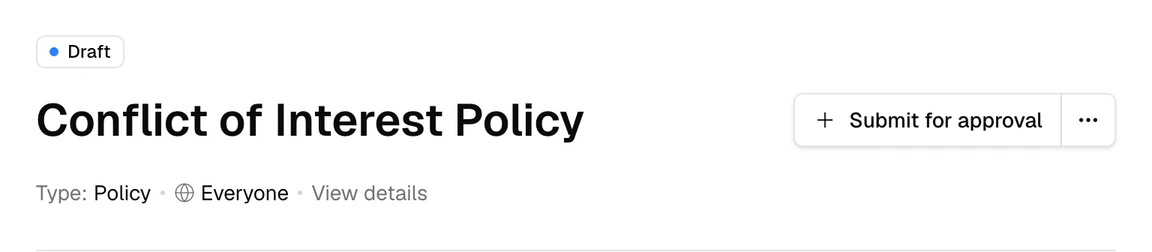
Start a draft
To change a record that is already approved, open its active version and select New version. Brava creates a draft from the active version. The active version stays in effect until the draft is approved.
A record can have only one draft at a time. If the record already has a draft, New version opens that draft.
Name the owner and the approver
Every record needs an Owner and an Approver before you can propose it. You set both in View details on the draft.
- The Owner is the person responsible for keeping the record up to date.
- The Approver is the person or group that decides whether to approve the record. If the approver is a group, any member of that group can make the decision.
If either one is missing, the draft shows how many required fields are left, and Brava asks you to complete them when you propose.
Choose a meeting
A proposal goes on a meeting’s agenda, and it is decided at that meeting.
Propose a record at a meeting
This clip shows the whole proposal, from the draft to Proposed. The steps follow it.
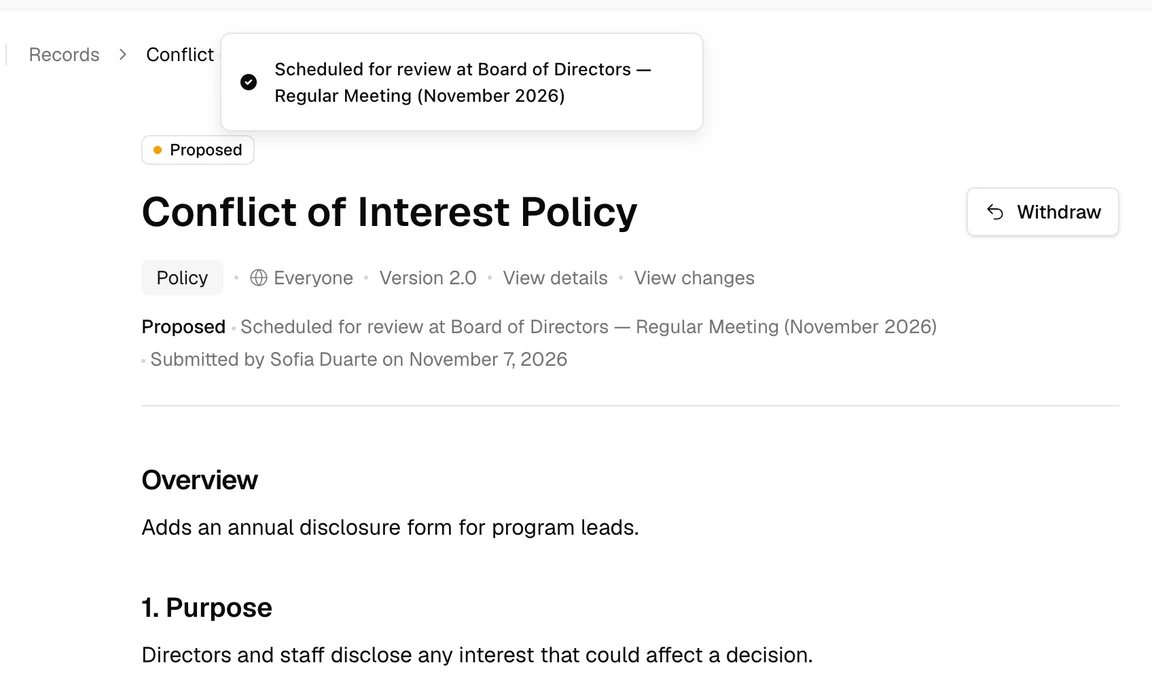
- Open the draft, and select Submit for approval. On a phone, Submit for approval sits below the status and details instead of beside the title, and the dialog opens full screen.
- If you can also approve the record yourself, choose Schedule at a meeting, then select Next.
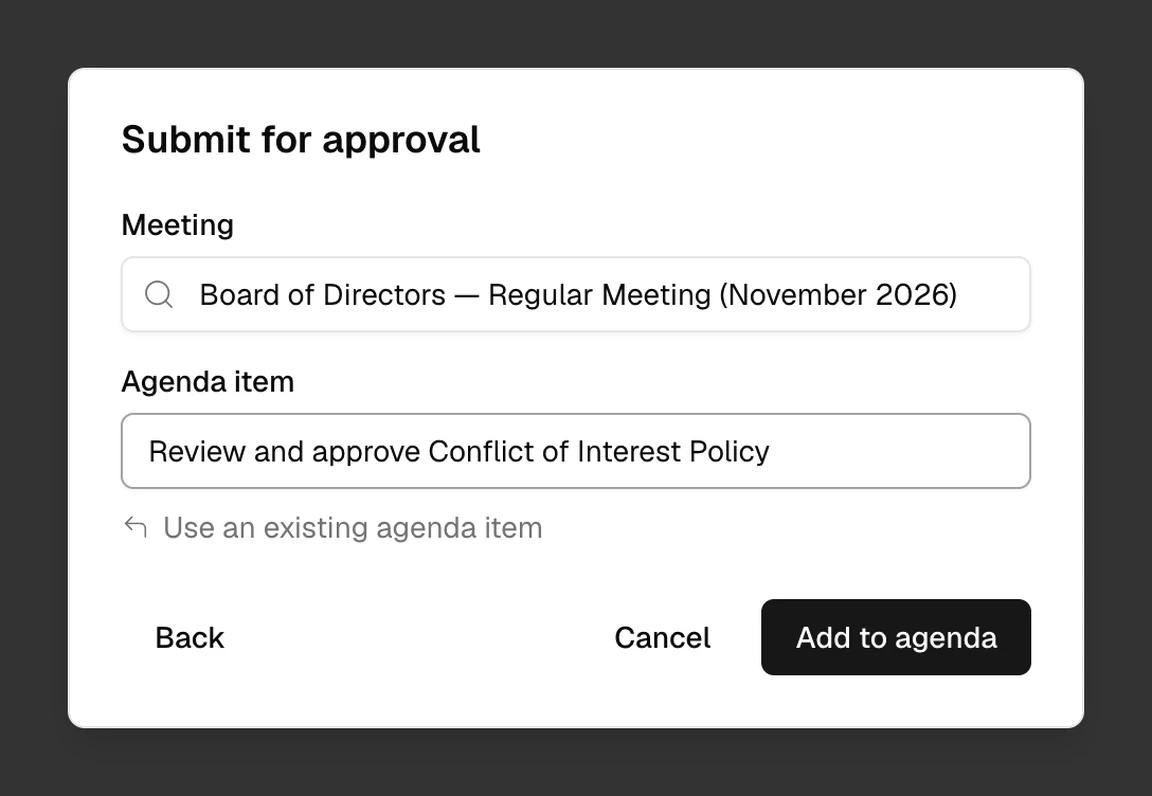
- Under Meeting, choose an upcoming meeting.
- Under Agenda item, Brava suggests a new item called “Review and approve” followed by the record’s title. You can change the title, or select Use an existing agenda item to choose an item that is already on the agenda.
- Select Add to agenda.
Approve a record yourself
If you can edit records and you are the record’s approver, or you are an Admin, you can approve a draft without taking it to a meeting.
- Open the draft, and select Submit for approval.
- Choose Approve it now.
- Select Approve.
The draft becomes the record’s Active version straight away.
What Brava does next
When you propose a record at a meeting, Brava does three things:
- The version becomes Proposed, and its content is locked.
- Brava adds the proposed version to the agenda item you chose.
- Brava adds a pending decision for the proposal to the same agenda item.
The record page shows the meeting the proposal is scheduled for, who submitted it, and when.
Who can see a proposal
These people can read a proposed version:
- everyone who can already read the record;
- the record’s approver, even if the record is restricted;
- the participants of the meeting it is scheduled for, when they can see that agenda item.
People who cannot edit records never see drafts. They see the active version, earlier versions, and any proposal they are allowed to read.
Review what changed
When a record already has an active version, its proposal shows View changes. You can find View changes on the proposed version’s page, and on the pending decision in the meeting’s agenda.
View changes shows what the proposal changes from the active version, section by section. Each changed section is marked Edited, New section, Removed, Moved, or Retitled. A first proposal, for a record with no active version yet, has nothing to compare, so it shows no View changes.
Enter the decision
The record’s approver enters the decision. If the approver is a group, any member of the group can enter it.
A pending decision waits in three places:
- on the meeting page, under the agenda item;
- on the Decisions page, under Pending decisions;
- on your Home page, under Decisions.
To enter the decision:
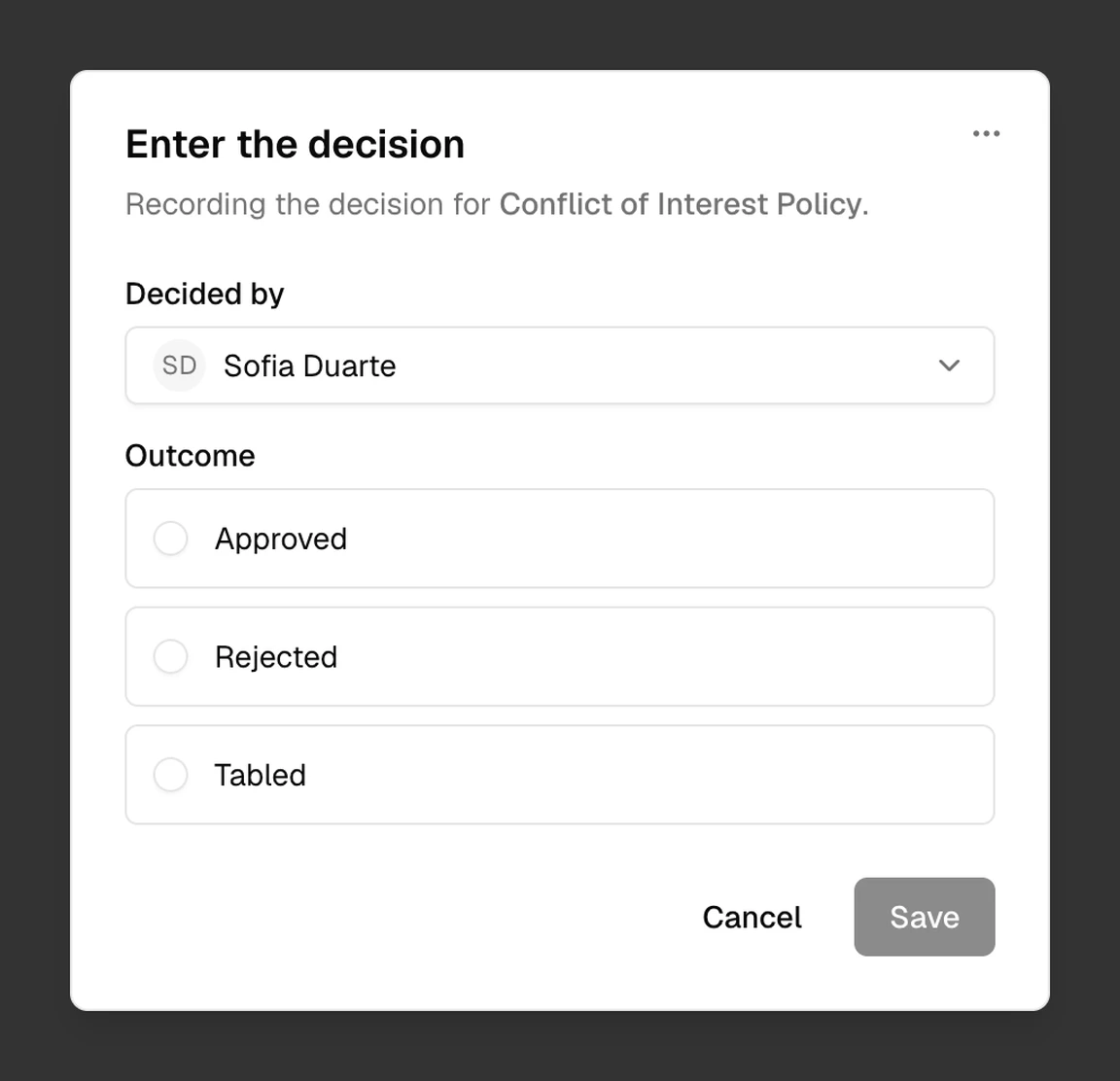
- Open the pending decision. On the Decisions page or your Home page, select Open.
- Under Decided by, choose the person or group that made the decision.
- Under Outcome, choose Approved, Rejected, or Tabled.
- Select Save.
What each outcome does
Approved
- The version becomes the record’s Active version.
- The version it replaces becomes Superseded.
- The record takes the title of the approved version.
- Open comment threads on the approved version are resolved.
Rejected
- The version becomes Rejected.
- It stays on the agenda item, so the meeting shows what was decided.
- The record’s owner, or an Admin, can start a new draft from it with Create draft.
Tabled
- The version stays Proposed, and stays on the agenda.
Once a meeting’s minutes are proposed, decisions from that meeting can no longer be entered.
Withdraw a proposal
The record’s owner, or an Admin, can take a proposal back before it is decided.
- Open the proposed version, and select Withdraw. On a phone, Withdraw sits below the status and details instead of beside the title.
- Select Withdraw proposal.
The version becomes Withdrawn, and its pending decision is withdrawn too. If the proposal added the record to an agenda item, Brava removes the record from that item. The content of the version is kept.
To change the proposal and propose it again, open the withdrawn version and select Create draft. Brava creates a new draft from the withdrawn version, and the new draft goes through approval again.
What can go wrong
Brava says a record can have only one proposal at a time. What now?
You can propose again once the current proposal is approved, rejected, or withdrawn.
New version is missing. Why?
While a proposal is waiting for a decision, you cannot start a new draft of the same record.
I can’t edit a proposed version. Why?
A proposal’s content is locked. Its approver can still be changed in View details.
I can’t change the record’s type. Why?
Once any version of a record has been proposed, its type is fixed.