Answer a meeting invitation
When a meeting you are invited to is scheduled, Brava emails you an invitation. You can tell the meeting’s owner whether you will attend straight from that email, without signing in to Brava, or later on the meeting itself. The invitation comes from your organization’s name “via Brava”.
Answer from the invitation
You can answer the invitation in three ways.
- The links in the email: in the invitation, under “Will you attend?”, select Yes, No, or Maybe. A page opens in your browser with your answer already selected. Change it if you need to, and select Confirm.
- The buttons in your calendar app: if your email or calendar app shows the invitation with its own Yes, No, and Maybe, select one. Brava saves your answer.
- A reply: reply to the invitation with a message, and Brava sends your message to the meeting’s owner.
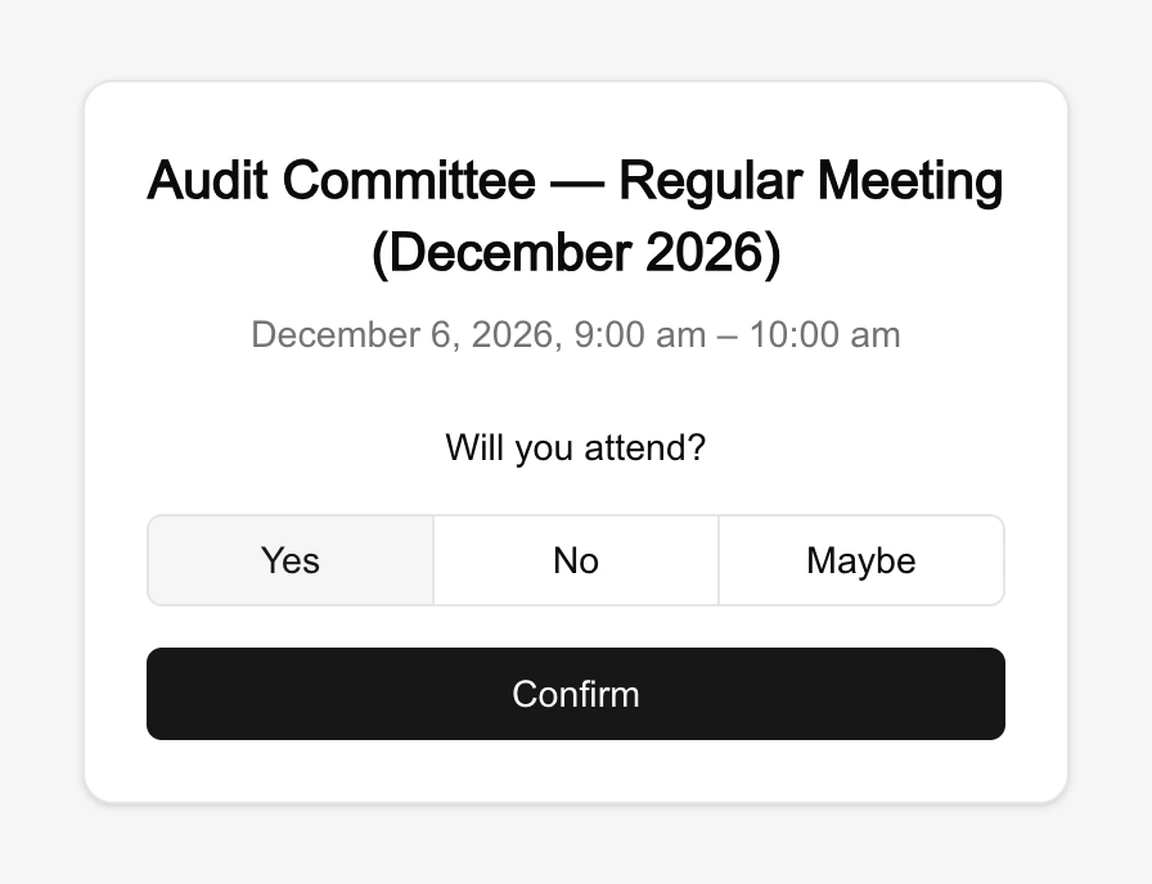
When you use the links, Brava confirms your answer, for example: “You confirmed that you will attend this meeting.” The meeting’s owner sees your answer in the meeting’s attendance.
To change your answer, select one of the links in the same email again. The links work until the meeting ends. If a link doesn’t work, use the links in the most recent invitation Brava sent you for this meeting.
Add the meeting to your calendar
Most email apps show the invitation as a calendar invitation that you can add to your calendar. If you answer Yes or Maybe, the answer page may also offer Add to calendar.
Answer in Brava
Once the meeting’s materials are sent, you can also answer on the meeting itself:
- Open the meeting, and select the attendees’ pictures under its title.
- Beside your name, choose Accepted, Tentative, or Declined.
- Select Save.