Invite members
To bring someone into your organization in Brava, you invite them by email. From the Members tab, you also resend or withdraw invitations, change a member’s details, and remove someone who is leaving.
Who can do this
Admins and Super Admins manage members. Only a Super Admin can invite, change, or remove a Super Admin.
The Members tab
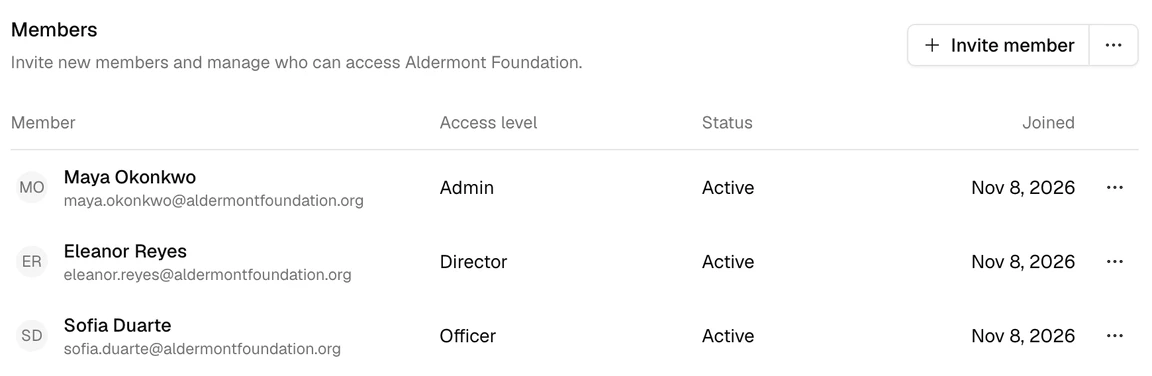
Everything on this page starts from the Members tab. Open Admin, then Members. You invite people with Invite member (1 in the picture below), and you manage each member from the Actions menu (⋯) at the end of their row (2).
Invite a member
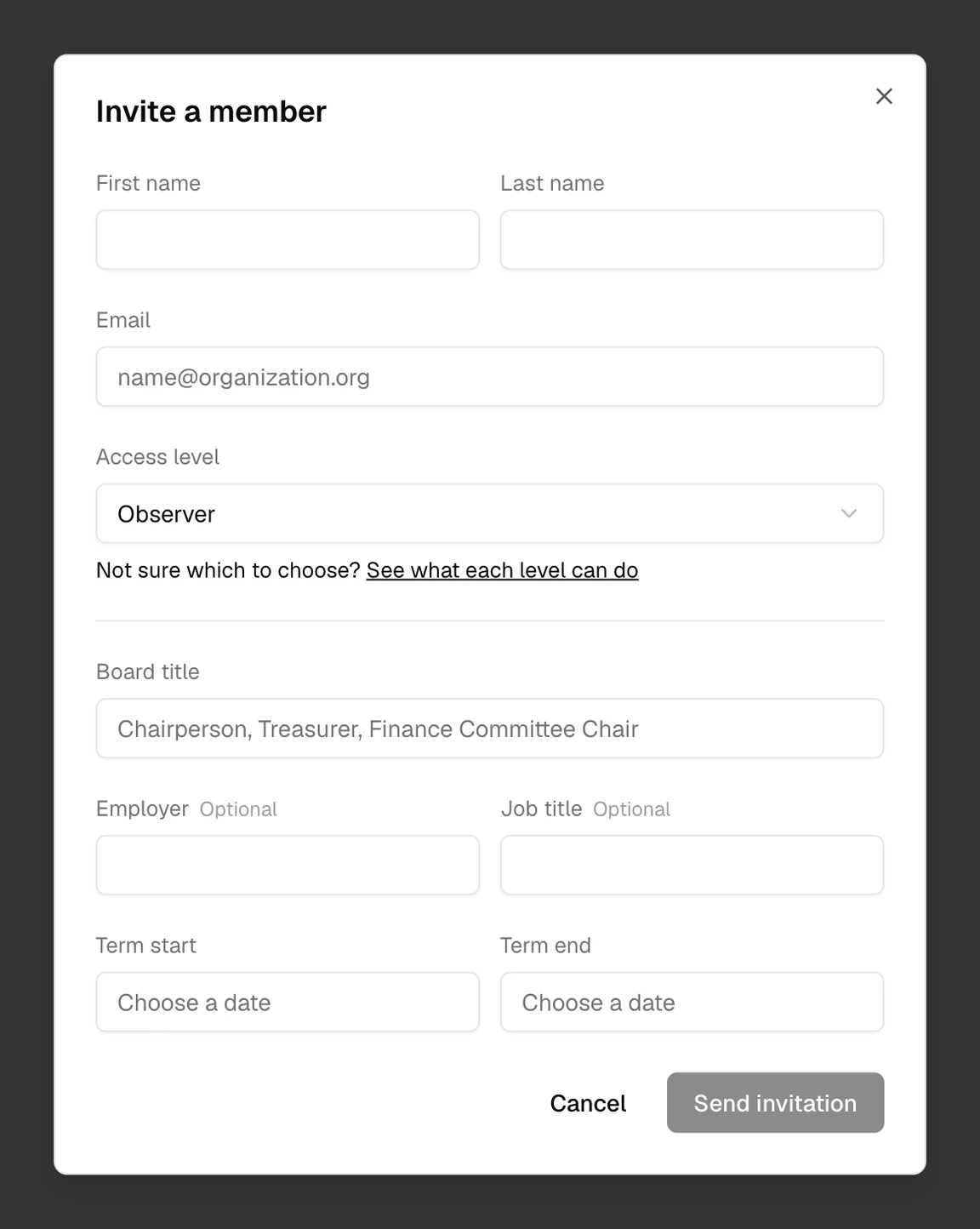
- Select Invite member.
- Enter their First name, Last name, and Email.
- Choose their Access level. It starts as Observer.
- If you like, add their Board title and term.
- Select Send invitation.
What Brava does next
Brava emails the person an invitation. Its link works for 7 days. Until the person accepts, they are listed as Pending. See Sign in.
Resend or withdraw an invitation
Select Actions (⋯) beside a pending member, and choose one of these:
- Resend invitation: Brava sends a new link, and the old link stops working.
- Withdraw invitation: the link stops working, and the person leaves the list.
To resend every pending invitation at once, select More member actions (⋯) beside Invite member, then Resend all pending invitations.
Change a member’s access level or details
Select the member, change their Access level, board title, or term, and select Save changes. See Change someone’s access level.
Remove a member
When someone leaves, you remove them by marking them as a past member. Their name stays on the decisions and records they took part in.
- Select Actions (⋯) beside them, then Mark as past.
- If they own records, choose who takes the records over. The new owner must be an Officer or above.
- Select Mark as past.
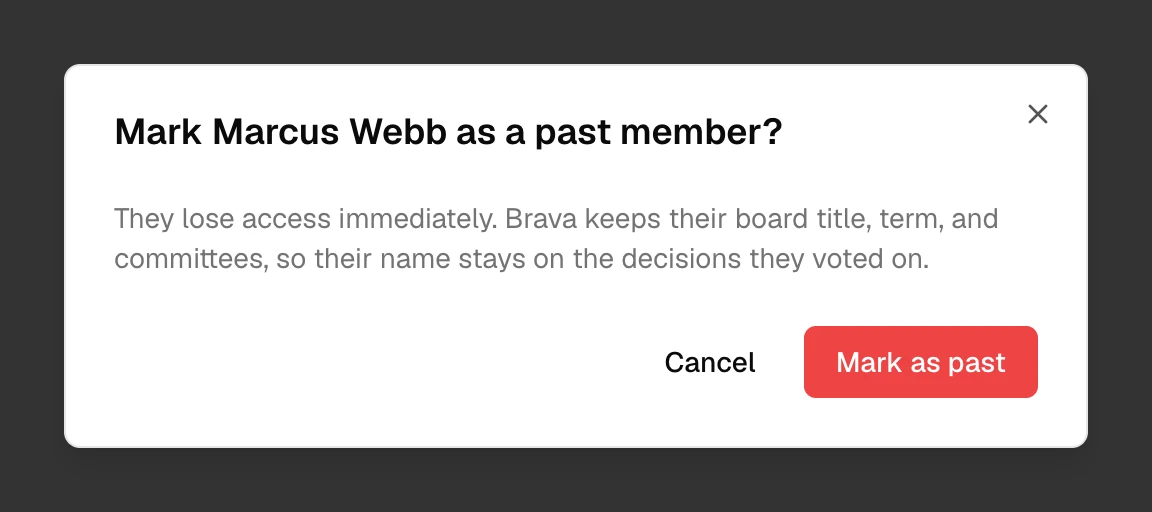
The past member loses access at once. Brava moves their records to the new owner, and takes them out of their groups and off the records shared with them by name. Their action items stay assigned to them. Records that name them as approver keep them as approver until someone changes it.
To bring someone back, select Actions (⋯), then Restore to active.
What can go wrong
Someone’s invitation link has expired. What do I do?
Resend the invitation.
I can’t change or remove the only Super Admin. Why?
An organization must always have at least one active Super Admin. Make another member a Super Admin first.
I can’t change someone’s access level. Why?
You cannot change the level of someone above you. Ask a Super Admin.