Zoom
With Zoom connected, select Create as your organization on a Brava meeting, for example Create as Aldermont Foundation, and Brava creates its Zoom meeting for you. Zoom records the meeting, and afterward Brava drafts the minutes from the transcript and the meeting’s materials. You edit them and propose them for approval.
You choose which Brava meetings get a Zoom meeting. A Brava meeting can also use any other meeting link, or none.
Who can do this
Admins and Super Admins add and remove Zoom. Officers and above create Zoom meetings and draft minutes from transcripts. See Access levels and permissions.
Before you begin
- You are an Admin or a Super Admin in Brava.
- You are an administrator of your organization’s Zoom account.
- The Zoom user who will host Brava’s meetings has a licensed Zoom account. Zoom does not record a Basic (free) user’s meetings to the cloud.
- Your Zoom account allows cloud recording and audio transcripts. If your Zoom account locks either setting off, Brava cannot turn it on.
- One Zoom account connects to one Brava organization.
Add Zoom to Brava
You connect Zoom once, for the whole organization. Then you choose the Zoom user who hosts the meetings Brava creates. If something goes wrong, see Troubleshooting.
-
In Brava, open Admin, then the Organization tab.
-
Under Integrations, find the Zoom card, which shows your organization’s name, for example Zoom for Aldermont Foundation. Select Connect.
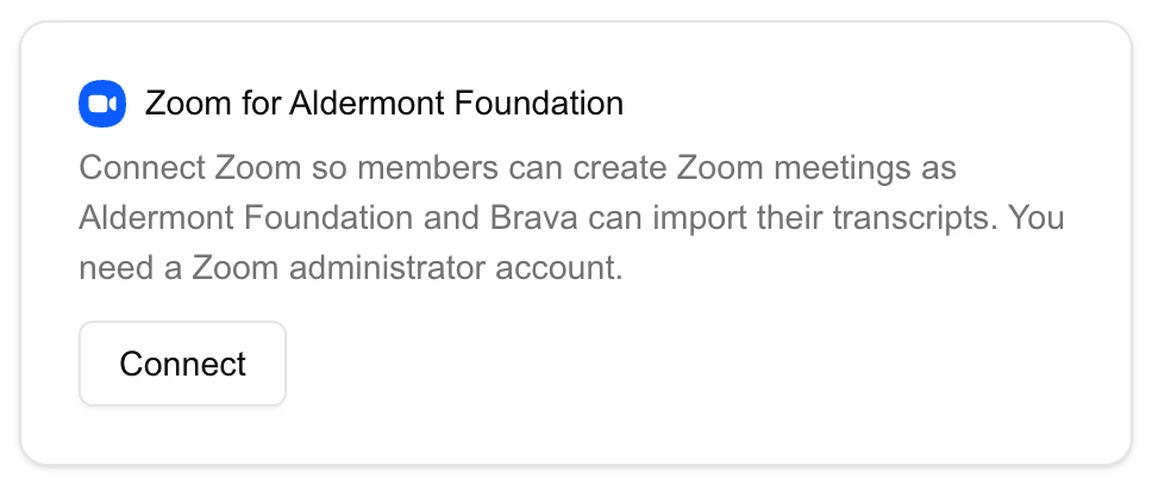
The Zoom card before you connect, with Connect marked. -
A Zoom window opens. Sign in to Zoom as an administrator. Review what Brava asks to do, and allow it.
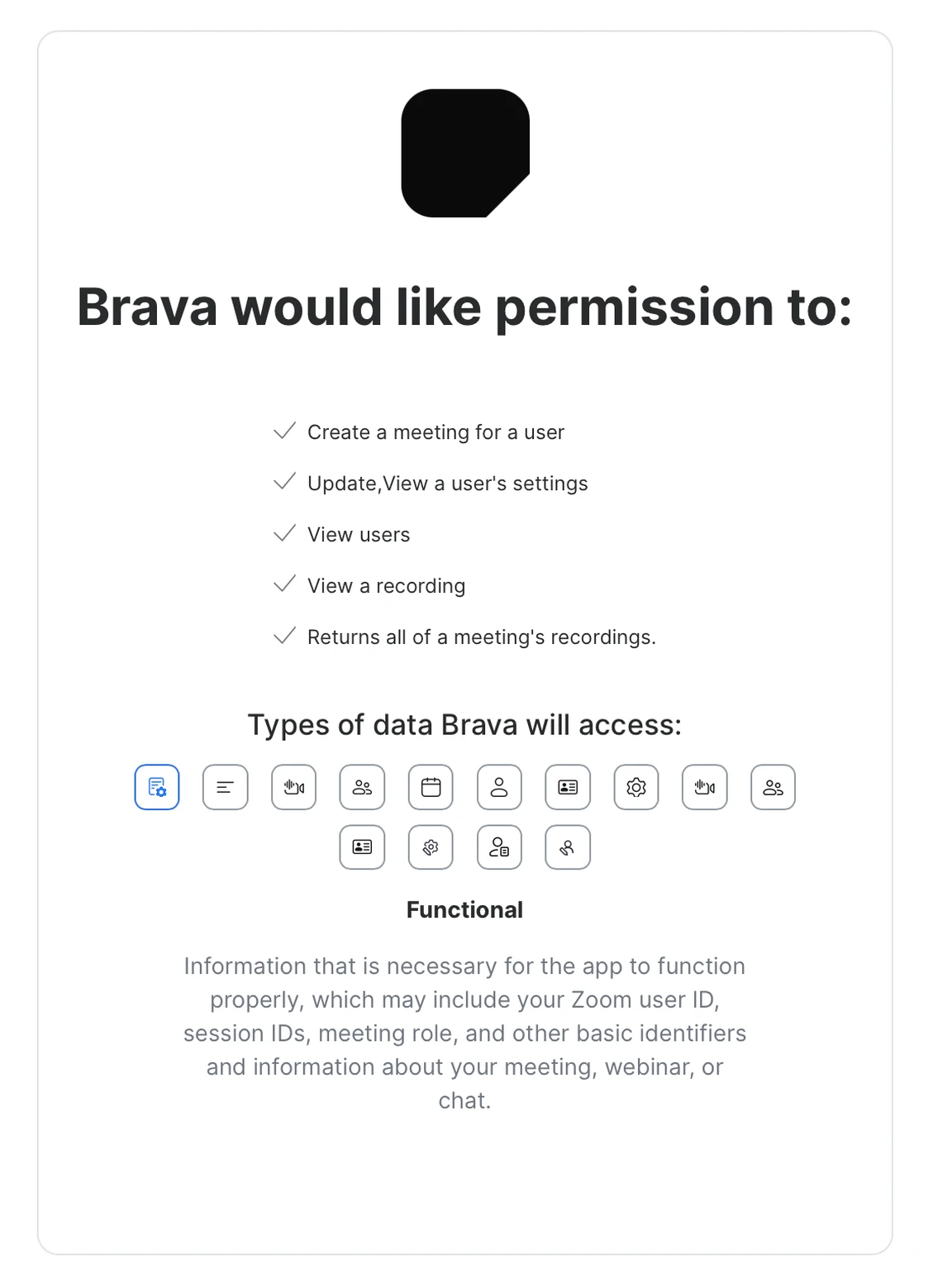
Zoom's consent screen for Brava. -
The Zoom window shows “Connection sent to Brava. You can close this window.” Close the window. In Brava, the Zoom card now shows the connection. If your browser blocks the window, Zoom opens in the same tab instead.
-
Under Meeting host, choose the Zoom user who hosts Brava’s meetings. Brava first chooses the Zoom user who connected.
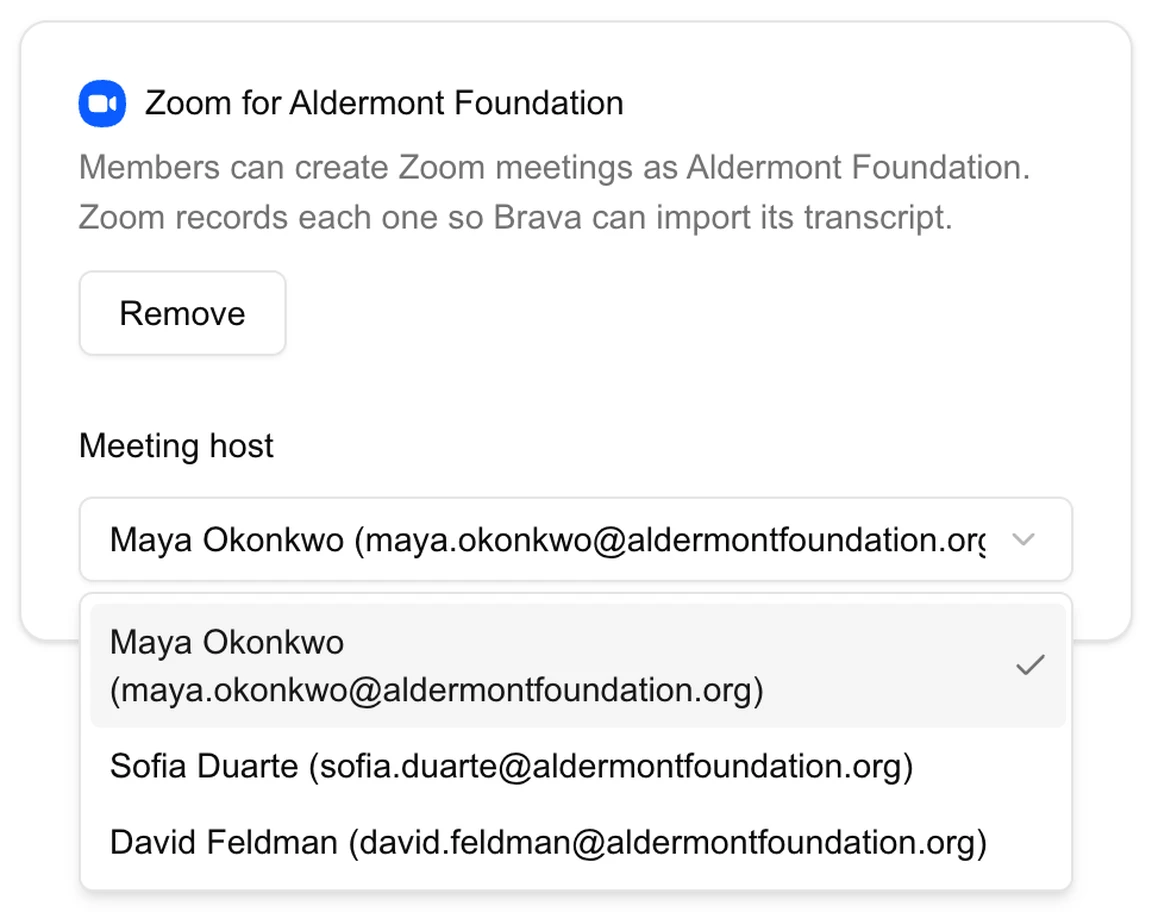
The Meeting host list, showing the users on your Zoom account. The card then shows the host you chose.
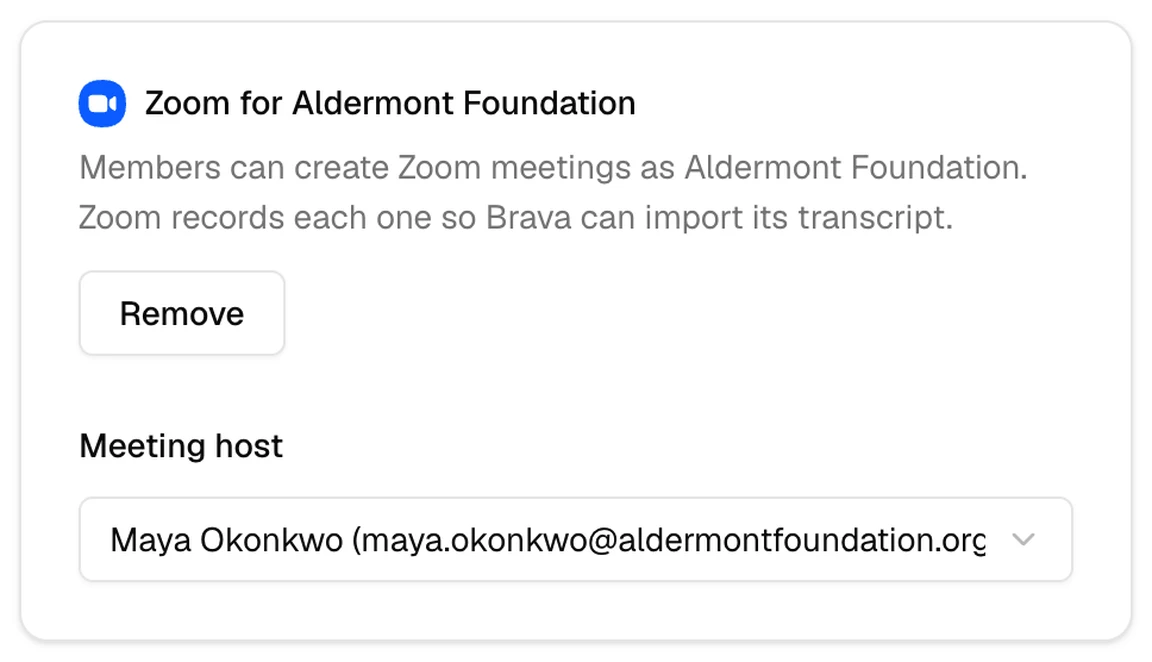
The connected Zoom card, with its Meeting host marked.
When you choose a meeting host, Brava turns on three recording settings for that Zoom user: Cloud recording, Create audio transcript, and Host can pause/stop the auto recording. To check them, open the host’s Settings in Zoom, then Recording. Create audio transcript is under Advanced cloud recording settings.
Zoom shows Host can pause/stop the auto recording only while Automatic recording is on. Brava leaves Automatic recording as it is, and sets each meeting it creates to record automatically instead.


Create a Zoom meeting
Brava creates the Zoom meeting on your organization’s meeting host, with the Brava meeting’s name, date, time, and length. Where you start depends on whether the Brava meeting is a draft or already scheduled.
On a draft meeting:
- Open the meeting.
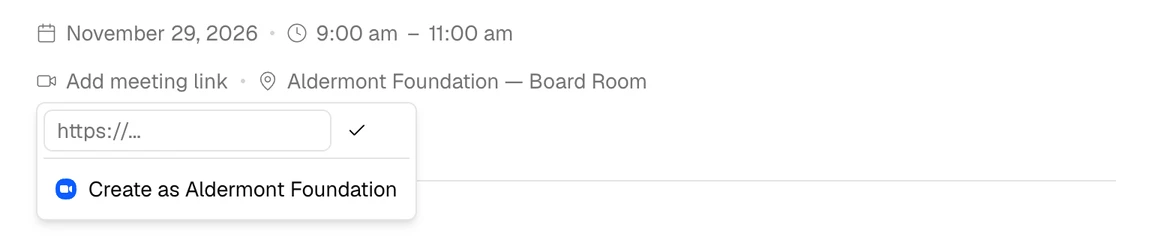
- Select Add meeting link, then the option to create the meeting as your organization, for example Create as Aldermont Foundation.
On a scheduled meeting:
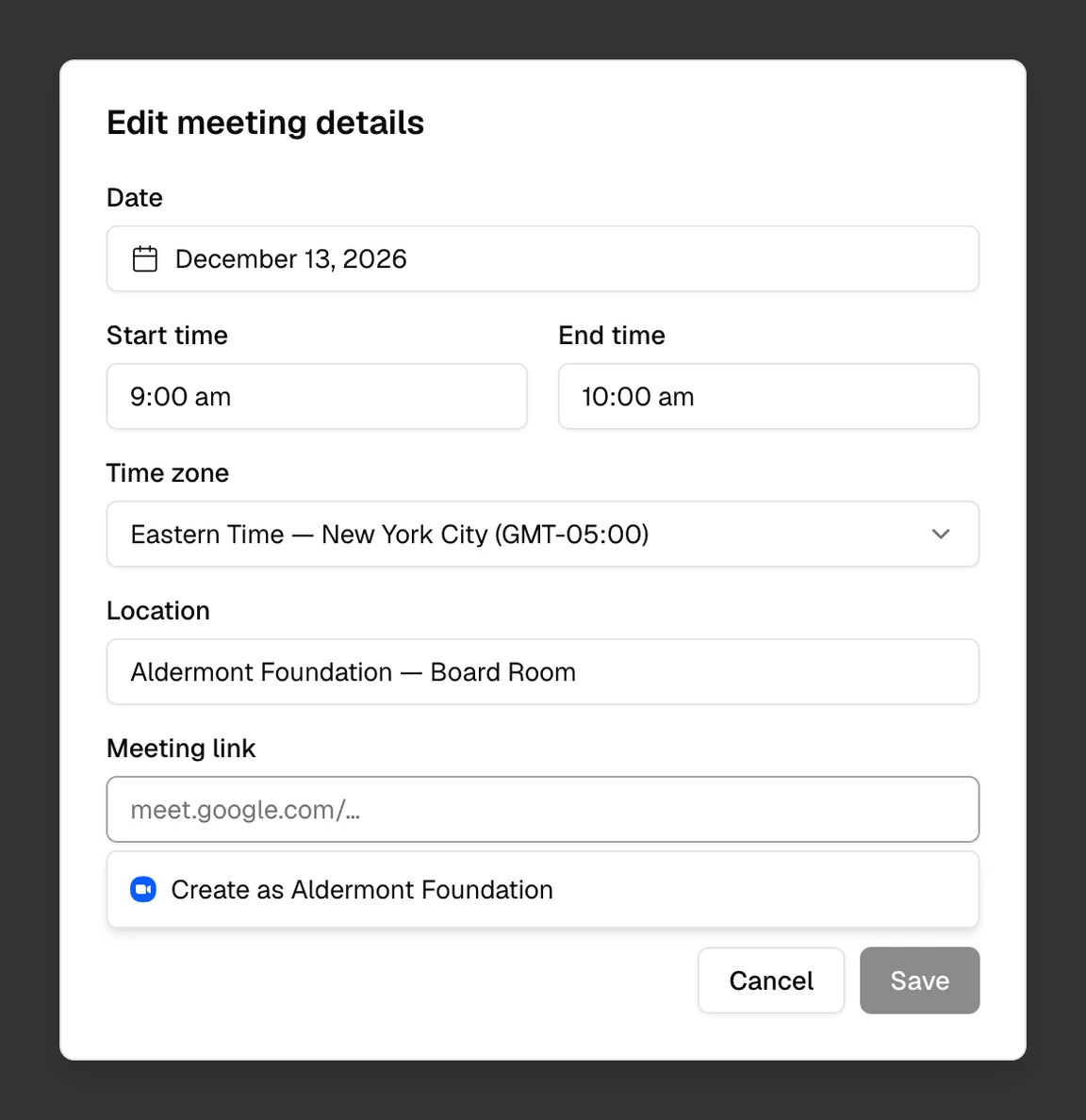
- Open the meeting, and select Edit meeting details.
- Select the Meeting link field, then the option to create the meeting as your organization, for example Create as Aldermont Foundation. The field shows New Zoom meeting.
- Select Save. Brava creates the Zoom meeting and sends the attendees an updated invitation.
Each Zoom meeting Brava creates is set up the same way:
- Zoom records the meeting to the cloud automatically.
- The meeting host can pause or stop the recording.
- Attendees can join before the host, and there is no waiting room.
- The Brava meeting’s owner becomes an alternative host, if they are a licensed user on your Zoom account.
Recording and transcripts
Zoom records every meeting that Brava creates. If you don’t want part of a meeting recorded, the meeting host pauses or stops the recording in Zoom.
After the meeting, Zoom finishes the transcript, and Brava picks it up. On Zoom Business plans and above, the transcript usually arrives soon after the recording ends. On a Pro plan, it can take up to 12 hours. Until then, the meeting shows Waiting for transcript in the Meetings list.
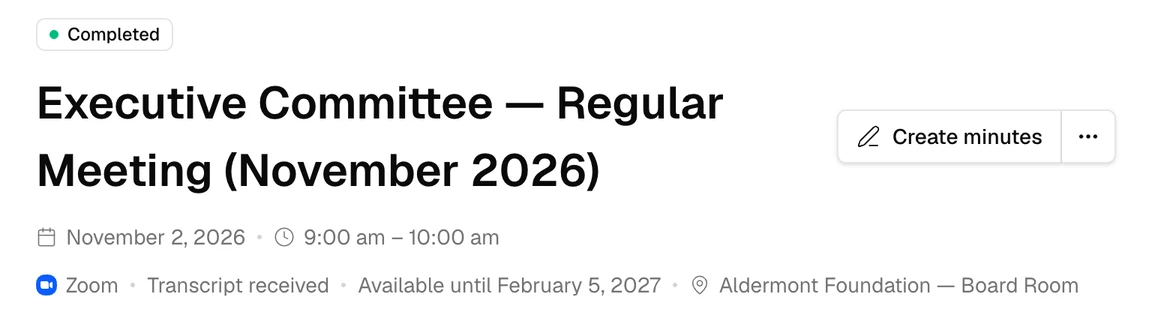
When the transcript has arrived, the meeting page shows Transcript received, and the date until which you can draft from it. The meeting’s owner gets an email saying that the minutes are ready to draft.
Draft minutes from the transcript
- Open the completed meeting, and select Create minutes.
- Under Draft from, choose Agenda, meeting details, and transcript.
- Select Create minutes.
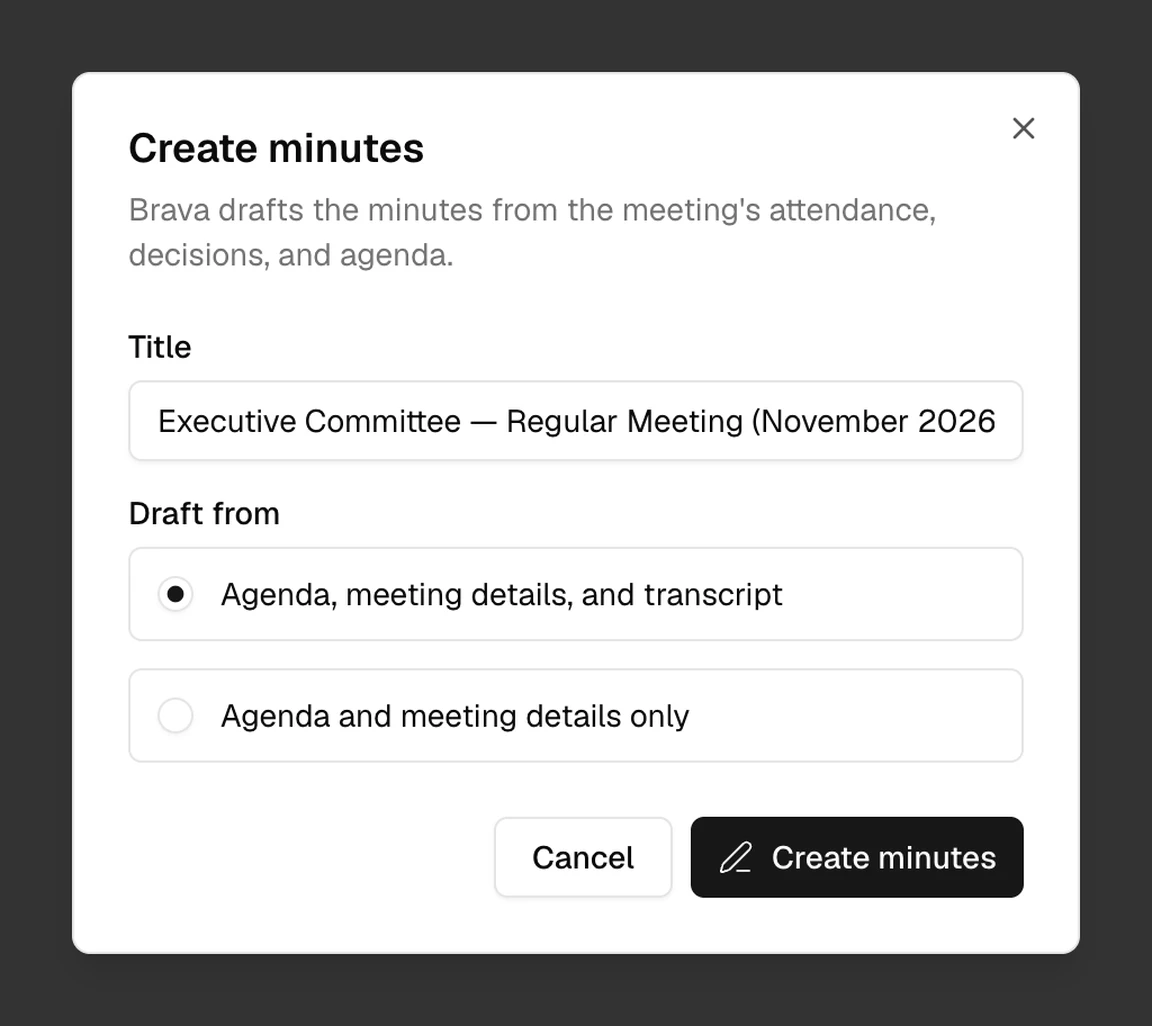
Brava drafts the minutes from the agenda, the meeting details, and the transcript. It suggests decisions and action items, each with a few short lines from the transcript to show where the suggestion came from. To draft without the transcript, choose Agenda and meeting details only.
You can draft from the transcript for your organization’s retention period, which is 90 days unless an administrator changes it. After that, you can still create the minutes without the transcript.
Your data
Brava downloads each meeting’s transcript only. It does not download the audio, the video, or the chat. Brava summarizes the transcript, and it does not keep the transcript itself. Brava deletes the summary when the meeting’s minutes are created. If they are never created, Brava deletes it when your organization’s retention period ends, counted from when the transcript arrived.
What Brava reads from Zoom
- The Zoom user who connects, and the users on your Zoom account, so that you can choose the meeting host.
- The meeting host’s recording settings.
- The list of a meeting’s recording files, and its transcript file.
- Zoom’s notices that a recording or a transcript is ready.
What Brava sends to Zoom
- Each meeting’s name, date, time, length, and time zone, and the settings listed under Create a Zoom meeting.
- The email address of the meeting’s owner, to check whether they can be an alternative host.
- The three recording settings for the meeting host.
What Brava keeps
- The connection: Zoom’s access to your account, stored encrypted, and the meeting host you chose. Brava keeps them until Zoom is removed.
- Each meeting’s Zoom link and Zoom meeting ids. Brava keeps them, so that links already sent to attendees keep working.
- What Brava got from Zoom with each transcript: its download link, Zoom’s ids for the meeting, the meeting’s topic, and the recording’s start time and length. Brava deletes them when Zoom is removed.
- The transcript summary. Brava made it, as it makes minutes. The summary stays until the meeting’s minutes are created, or until your organization’s retention period ends. Removing Zoom does not delete it.
- Minutes and other records that your organization creates from a meeting. They stay in Brava, including the short quote from the summary kept with each suggested decision or action item.
Brava never stores the transcript, or any audio, video, or chat.
When Brava checks for a transcript
On Zoom Business plans and above, Zoom tells Brava as soon as a transcript is ready. On a Pro plan, Brava checks for the transcript every 30 minutes after Zoom finishes the recording, for up to 12 hours.
AI processing
Brava summarizes each transcript with an AI model from Anthropic. The processing happens in the United States. The model receives the transcript, with its speakers’ names, and the meeting’s name. To draft the minutes and suggest decisions and action items, it receives the summary, with the meeting’s agenda, planned decisions, and action items, including who each action item is assigned to.
Read Brava’s Terms of Service and Privacy Policy.
Remove Zoom
- Open Admin, then the Organization tab.
- On the Zoom card, select Remove, then Remove Zoom.
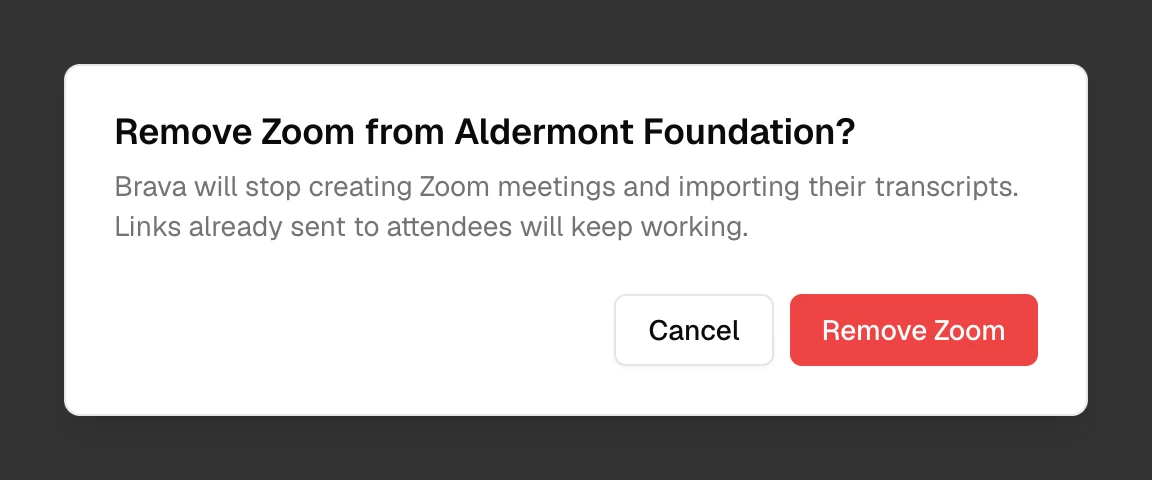
When Zoom is removed:
- Brava revokes its access at Zoom, and deletes the connection and its stored access.
- Brava deletes what it got from Zoom with each transcript: its download link, Zoom’s ids for the meeting, the meeting’s topic, and the recording’s times.
- Transcript summaries stay. Each summary stays until the meeting’s minutes are created, or until your organization’s retention period ends.
- Meeting links already sent, minutes, other records, and the audit log stay. Zoom meetings already created stay in Zoom, with their recordings.
- Members can no longer create Zoom meetings in Brava, and Brava no longer imports transcripts.
To use Zoom again, an administrator connects it again.
Troubleshooting
Adding Zoom
I can’t connect Zoom. Why?
Only an Admin or a Super Admin in Brava can connect Zoom. Ask one of them to connect it.
Brava says this Zoom account is already connected. What do I do?
One Zoom account connects to one Brava organization. This Zoom account is connected to another Brava organization, or to yours already. Sign in to Zoom with your organization’s own account.
Connecting didn’t finish. What do I do?
Select Connect again, and keep the Zoom window open until it says you can close it. A connection attempt expires after 10 minutes. If Brava says it cannot connect to Zoom right now, try again later. If that continues, contact support.
The Meeting host list doesn’t load, or my choice doesn’t save. What do I do?
Open the Meeting host list again. If your choice doesn’t save, reload the page, and choose again. The Zoom user you chose may no longer be active.
Brava says it lost its connection to Zoom. What do I do?
Select Reconnect on the Zoom card. This happens when Zoom stops accepting Brava’s access, or Brava cannot reach Zoom for 24 hours. Brava also emails your administrators.
Creating meetings
Brava couldn’t create the Zoom meeting. What do I do?
Try again. If it keeps failing, ask an administrator to check the Zoom card: the connection may have expired, or no meeting host is chosen.
Brava says Zoom did not let it create the meeting. What do I do?
Ask your Zoom administrator to check that the meeting host can schedule meetings, then reconnect Zoom.
Brava couldn’t confirm the Zoom meeting link. What do I do?
The meeting may already exist in Zoom. Look for it in Zoom before you create it again.
Brava says someone else added a meeting link. What do I do?
Another person added a link while you were editing. Select Cancel, and look at the link they added.
Recordings and transcripts
The meeting still shows Waiting for transcript. Why?
Zoom has not finished the transcript, or the recording was stopped. On a Pro plan, the transcript can take up to 12 hours. If no transcript arrives, create the minutes without it.
Brava received the transcript but couldn’t draft from it. What do I do?
Create the minutes from the agenda and meeting details.
The transcript is no longer available. Why?
Your organization’s retention period ended before the minutes were drafted. Create the minutes from the agenda and meeting details.
Removing Zoom
Brava couldn’t remove Zoom. What do I do?
Select Remove again.
Get help
Email Brava’s support team. See Support.