Schedule a meeting
Scheduling a meeting in Brava happens in two stages. First you create the meeting as a draft and prepare it: you add the attendees and a meeting link, and you choose who can see the meeting. Then you schedule it, and Brava emails an invitation to each attendee.
Who can do this
Officers and above schedule meetings. See Access levels and permissions.
Create the meeting
-
Open Meetings, and select Create meeting.
-
Enter the Title, Date, Start time, and End time.
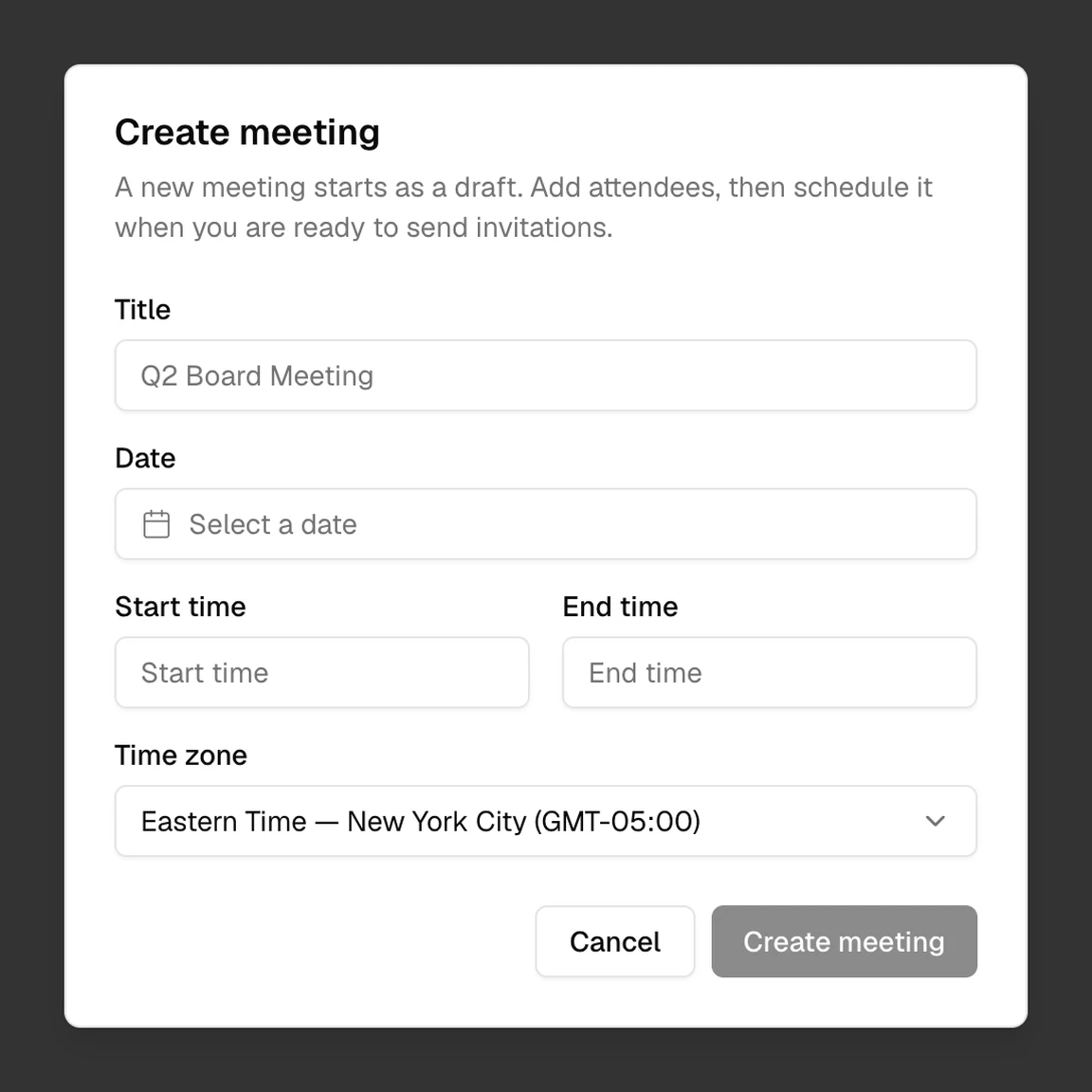
The Create meeting dialog. -
Select Create meeting.
Brava opens the new meeting as a draft, with you as its owner.
Prepare and schedule the meeting
-
Select Add attendees.
-
Search for people or groups, and choose them. Choosing a group adds each of its members.
-
To add someone from outside your organization, type their name, and select Add with their name. Enter their email address, so that they receive the invitation.
-
Select Save.
-
Add the meeting link. Select Add meeting link, paste the link, and select Apply link. To create a Zoom meeting instead, see Zoom. To change the meeting’s date, time, or location, select it on the meeting page.
-
Choose who can see the meeting. Select View details, then Access, and choose one of three options. Only the meeting’s owner can change Access.
- Everyone: every member sees the meeting and, once the materials are sent, its agenda and materials.
- Attendees only: every member sees that the meeting is planned. Only its attendees see the agenda and materials.
- Private: only its attendees see the meeting.
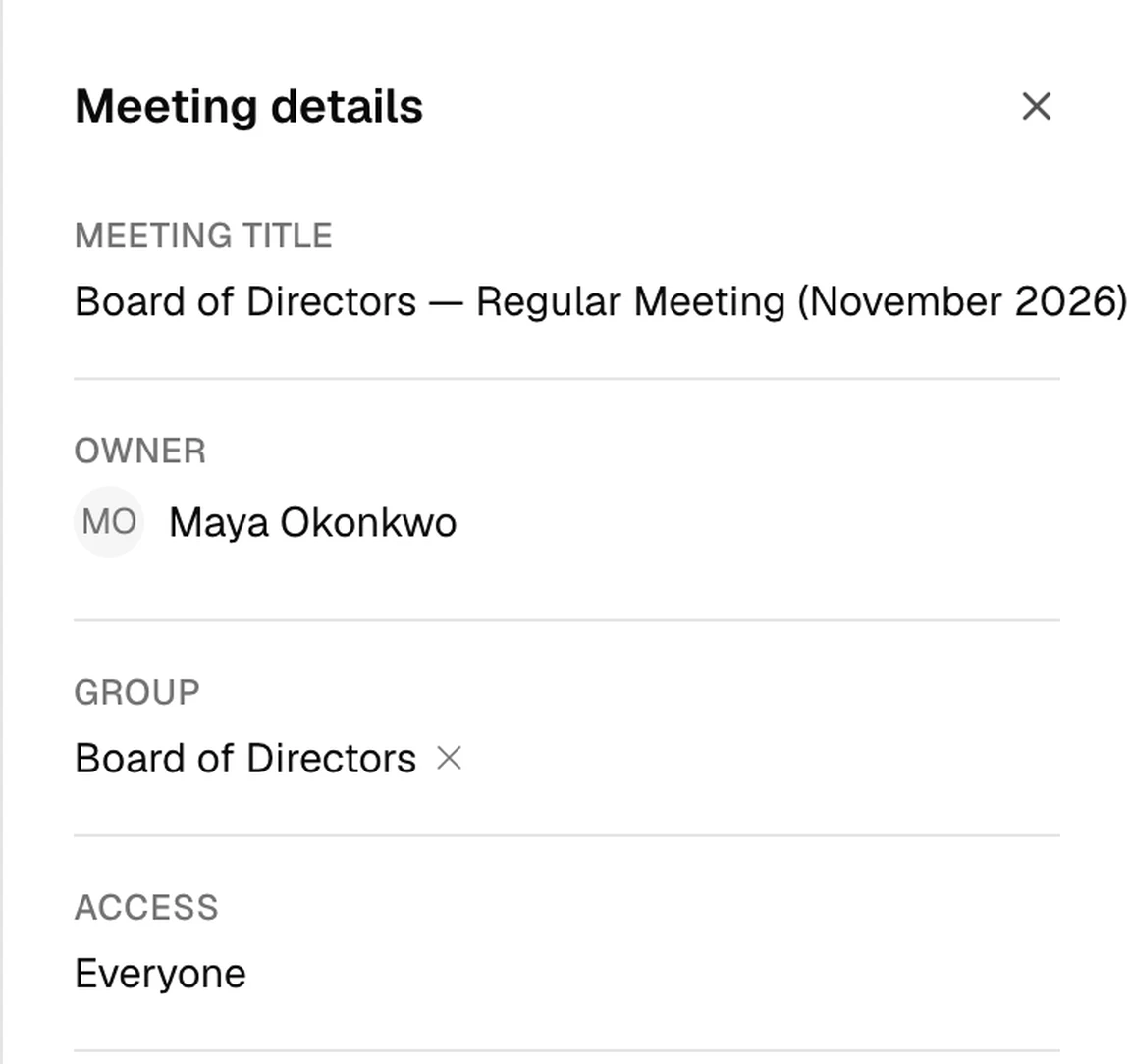
A meeting's Access setting, in Meeting details. -
Schedule the meeting. Select Schedule meeting, then select Schedule meeting again to confirm. If the agenda already has items, you can also tick Also distribute materials now to send the materials at the same time.
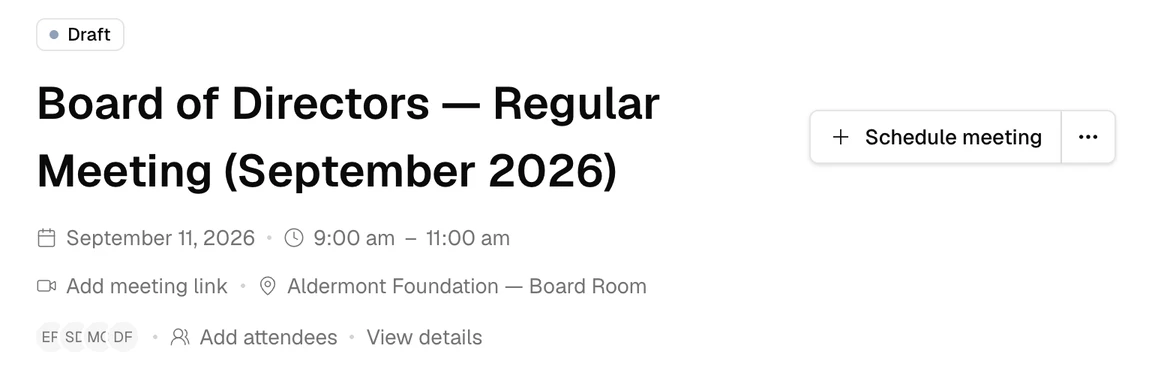
A draft meeting, ready to schedule.
The meeting is now scheduled.
What Brava does next
Brava emails an invitation to each attendee who has an email address. The invitation comes from your organization’s name “via Brava”. It has Yes, No, and Maybe links, and it works as an invitation in the attendee’s calendar app. See Answer a meeting invitation.
From then on, Brava keeps the attendees up to date when the meeting changes:
- If you change the date, time, location, or link, Brava sends the attendees an updated invitation. To make the change, select Edit meeting details.
- If you add an attendee, Brava sends them an invitation. If you remove an attendee, Brava sends them a cancellation.
- If you rename the meeting, Brava sends no email.
Next, build the agenda and send the materials.
Complete or cancel a meeting
After a meeting takes place, complete it in Brava. Select Complete meeting, then Complete meeting again. If the materials have not been sent, Complete meeting is under More actions (⋯) instead. Once the meeting is completed, its agenda can no longer change. Next, take attendance and take minutes.
To cancel a scheduled meeting, select More actions (⋯), then Cancel meeting, then Cancel meeting again. Brava emails each attendee a cancellation. Decisions that were planned for the meeting stay on the Decisions page.
Admins and Super Admins can delete a draft meeting. Select More actions (⋯), then Delete meeting, then Delete meeting again. Brava also deletes the meeting’s agenda, and any files attached only to that meeting.
What can go wrong
I can’t select Schedule meeting. Why?
A meeting needs at least one attendee before you can schedule it. Add an attendee first.
Someone didn’t get an invitation. Why?
They may have no email address in Brava. If Brava could not deliver an email, the top of the meeting says so, for example “Invites · 1 failed”. Contact Brava support to have it sent again.
I can’t change Access. Why?
Only the meeting’s owner can change who can see a meeting. The owner is shown in View details.