Draft with the assistant
Brava AI can write a first draft of a new record for you, or a revision of a record that is already approved. You answer a few questions, Brava AI writes the draft, and Brava saves it as your draft, for you to read and change.
Who can do this
Brava AI drafts for Officers and above, the people who can create and edit records. See Access levels and permissions.
Draft a new record
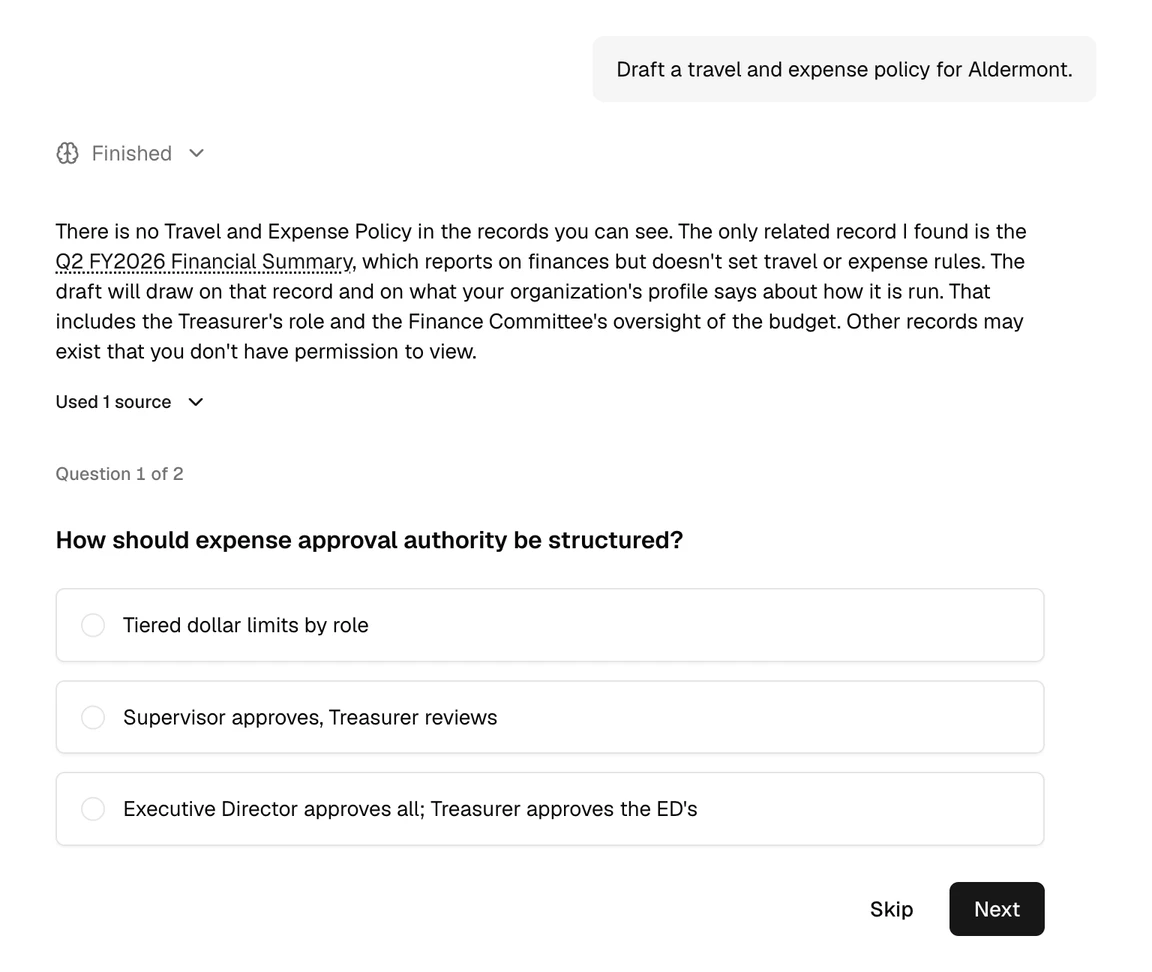
To get a draft, ask for one, for example: “Draft a travel and expense policy.” Brava AI may also offer a draft on its own when your organization has no record of the kind you ask about. It drafts charters, policies, plans, budgets, reports, and guides. It never drafts minutes or agreements.
- If Brava AI offered the draft, select Yes, draft it, then Continue. If you asked for the draft, Brava AI goes straight to its questions.
- Answer up to three questions. To leave a question out, select Skip. When a question asks for a person, choose the person, or choose Not yet.
- Select Write the draft.
While it works, Brava AI shows its progress: “Reading your records”, “Writing the draft”, then “Saving it as your draft”.
If you asked on Home, select Continue to answer the questions on the Brava AI page.
Draft a revision
To get a revision, ask for one, for example: “Update our whistleblower policy for the new committee.” Brava AI may also offer a revision on its own when a record:
- contradicts a later decision;
- names a date that has passed;
- names a role or body that no longer exists;
- disagrees with another record.
- Select Yes, draft a revision. If the record already has a draft that you can read, select Yes, add it to the draft instead.
- Answer the questions, or select Skip to leave them out.
- Select Write the revision.
Brava AI revises records that have an approved version. It does not revise minutes.
What Brava does next
- In the chat, Brava AI lists the records the draft draws on, and what to check under Before you finalize. A revision also lists the sections it changed, added, or removed.
- A link at the end of the chat opens the draft. The link reads Draft created, Revision drafted, or Draft updated.
- The draft is yours. You are its owner, and it is Restricted, so only you can see it until you share it. Its approver is your organization’s main board group.
- The audit log shows that you created the draft with Brava’s help.
Read the draft, change what it needs, then propose it.
Your data and AI
- Brava AI writes drafts with an AI model from Anthropic.
- To write a draft, the model receives your answers, part of the conversation, and the text of the records the draft draws on.
- Brava AI offers one draft per answer.
Read Brava’s Terms of Service and Privacy Policy.
What can go wrong
Brava AI doesn’t offer a draft. Why?
Only Officers and above get offers. If you selected Not now, ask for the draft instead.
Brava says a proposal is awaiting approval. What now?
You can revise the record once the proposal is decided.
Brava says the record has changed since it offered the revision. What now?
Ask again, so that Brava AI works from the current version.
Brava says it has written its daily limit of drafts. What now?
Try again tomorrow. The limit is for your whole organization.