Ask the assistant
Brava AI is Brava’s assistant. Ask it a question about your organization’s records, meetings, decisions, or action items, and it answers in plain sentences, with links to the records it used. Every member of your organization can use it.
Ask a question
Open Brava AI in the sidebar. Type your question in the box (1 in the picture below), and press Enter.
If you are not sure what to ask, choose one of the topics under the box (2) to see questions to start from. Choosing a question puts it in the box, where you can change it or send it as it is.
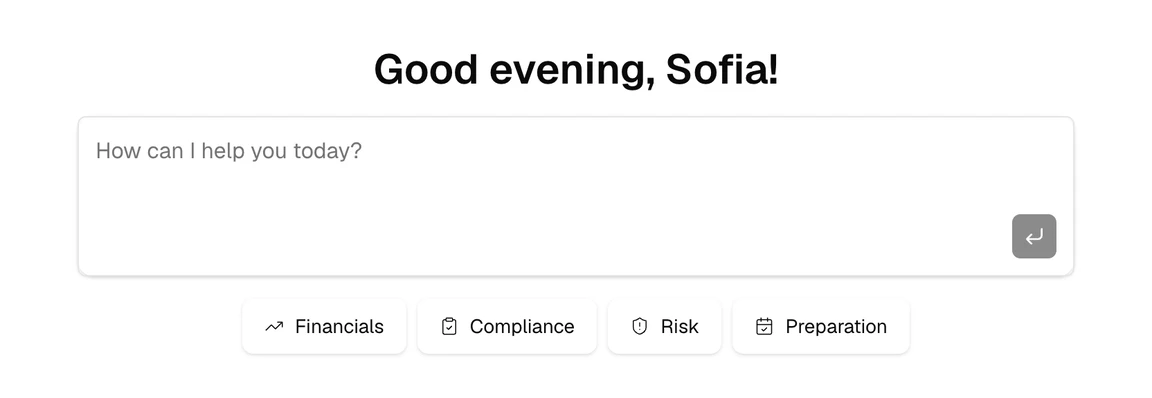
You can also ask from elsewhere in Brava:
- On Home: type in the box that says “How can I help you?”, and press Enter. The answer opens beside the page. Select Open as full page to continue the conversation in Brava AI.
- With ⌘K (Ctrl+K on Windows): type your question, and choose the option to ask Brava about it.
Read the answer
An answer can include these parts:
- Links: the answer links to each record, decision, or meeting it mentions (1 in the picture below).
- Sources: select Used with the number of sources, for example Used 2 sources (2), to see each record the answer used, and the passage it drew on. A draft is marked Draft.
- Copy: to copy the answer, select Copy under it.
- Follow up: to ask a follow-up question, type in Reply….
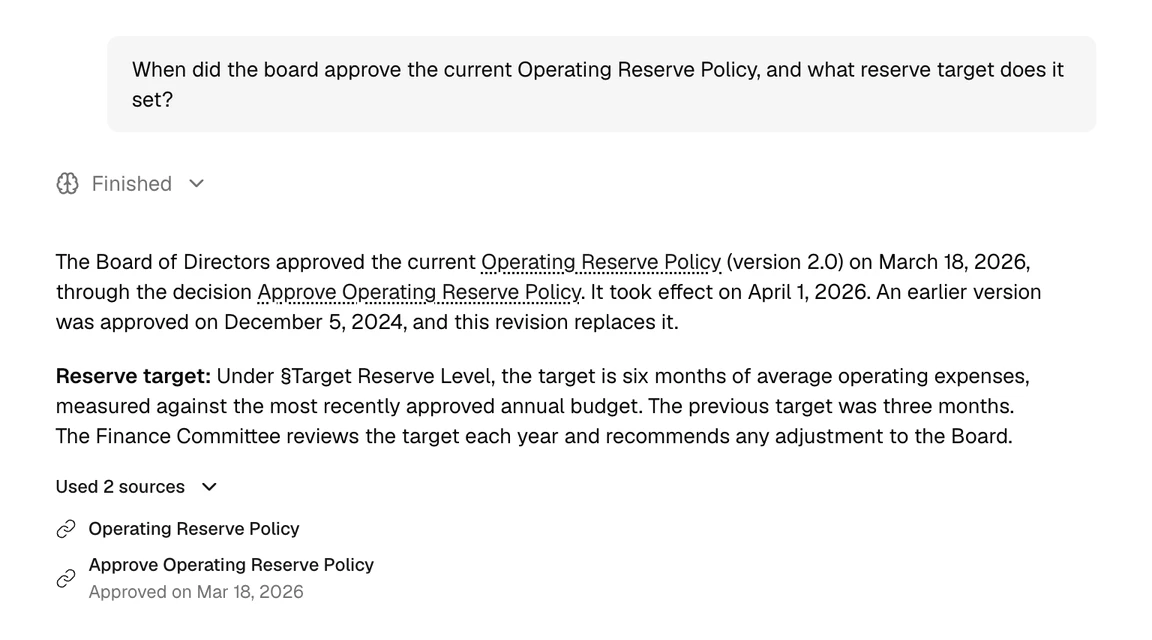
Your chats
Brava keeps each conversation as a chat. Only you can read your chats. Admins cannot read them.
- To start a new chat, select New chat.
- To return to a chat, choose it under Chats in the sidebar on the Brava AI page. On a phone, select Chats.
- To rename or delete a chat, point to it, select More, then Rename or Delete chat.
What Brava AI can see
Brava AI reads the records, meetings, decisions, and action items you can read. It does not read agendas, attached files, comments, Zoom transcripts, earlier versions, or the web.
If you are an Admin or Super Admin, Brava AI sees only what you could see without those rights. It does not see private meetings you are not on, or restricted records that are not shared with you.
For each record, Brava AI reads the approved version, or the latest version when none is approved yet. For a meeting whose materials are not sent yet, it does not see the attendees, decisions, or action items, except the action items assigned to you.
Your data and AI
- Brava AI uses an AI model from Anthropic.
- With each question, the model receives your question, your name, email address, access level, and groups, your organization’s name and its description, today’s date, and the text of the records Brava AI looks up.
- Brava keeps your chats until you delete them. When you delete a chat, Brava removes the chat and its messages. A copy of the conversation is kept at Anthropic, which runs the AI model.
Read Brava’s Terms of Service and Privacy Policy.
What can go wrong
Brava says I’m sending messages too quickly. What do I do?
Wait a moment, and try again.
Brava says I’ve reached today’s limit. When can I ask again?
After the time the message shows. Your organization has a daily limit too.