Find your way around
Brava has a few main areas: Home, Brava AI, Meetings, Decisions, Records, and People. The sidebar at the left leads to each one, and the command palette takes you anywhere from the keyboard. What you see depends on your access level, so some parts may look different for you. See Access levels and permissions.
Home
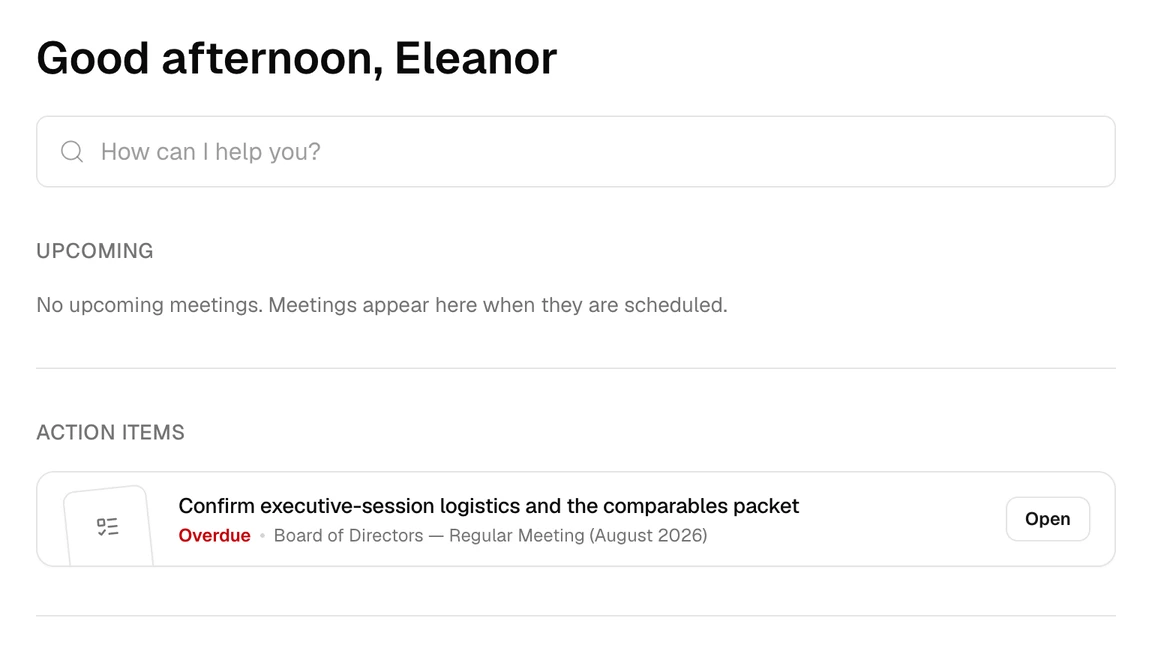
Brava opens on Home. Home gathers what needs your attention, from top to bottom:
- The Ask bar, where you ask Brava a question about your organization’s records and meetings. See Ask the assistant.
- Upcoming: the scheduled meetings you attend in the next 90 days.
- Decisions and Action items: the decisions and approvals waiting for you, and the action items assigned to you. Brava shows these two sections only when something is waiting.
- Recent activity: new meetings, changes to records, decisions, and invitations.
The sidebar
The sidebar at the left of the screen leads to each part of Brava:
- Home
- Brava AI: your conversations with the assistant.
- Meetings: upcoming and past meetings.
- Decisions: your organization’s decisions.
- Records: your organization’s records. While you are in Records, Workspace and Archive appear below it.
- People: the members of your organization.
- Admin: members, groups, and settings. Only Admins and Super Admins see it.
Your name is at the bottom of the sidebar. Select your name for Profile, Dark mode, and Sign out.
On a phone, the sidebar is a menu. To open it, select the menu button at the top right of the screen.
The command palette
The command palette takes you anywhere in Brava from the keyboard. Press ⌘K on a Mac, or Ctrl+K on Windows, from any page. Then type to find a record by its title, go to a page, or start something new. If nothing matches what you typed, select Ask Brava to ask the assistant instead.
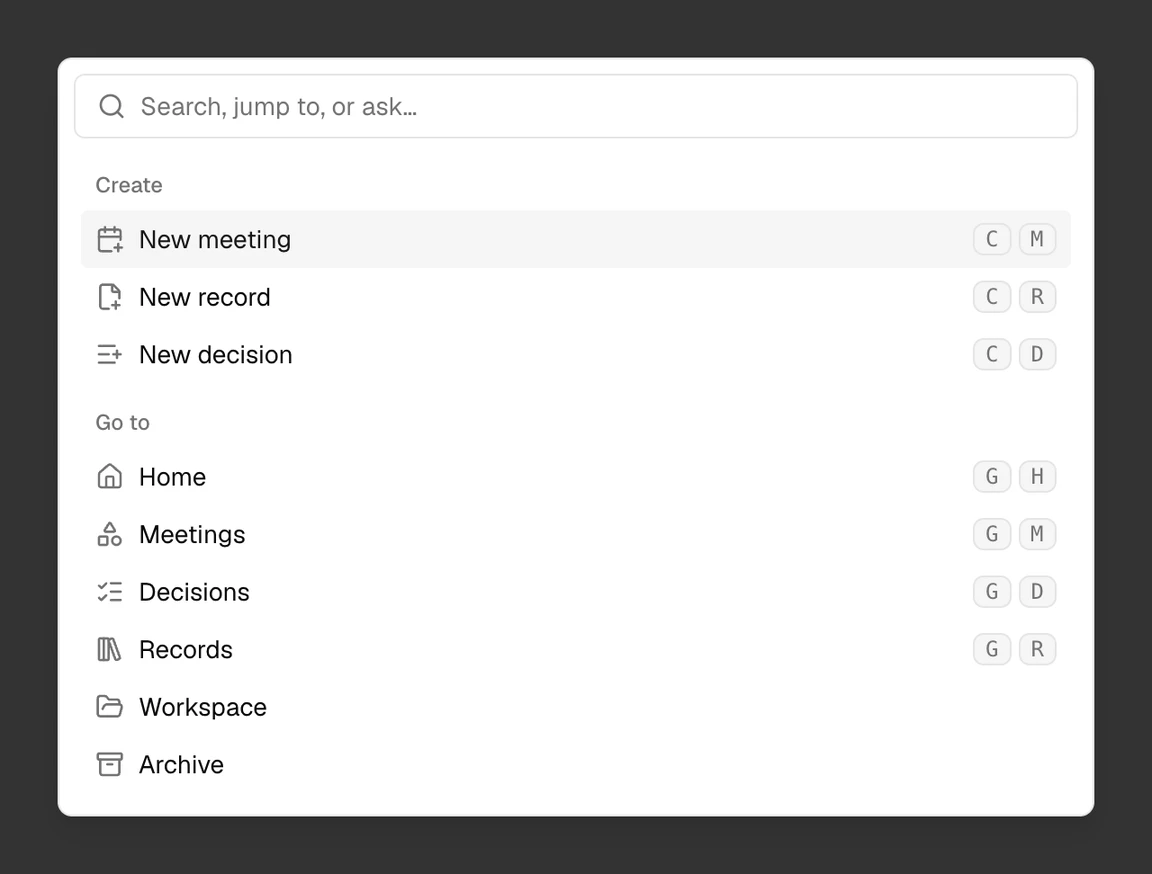
The Create list shows only what your access level allows you to create, such as New meeting or New record.
Switch organizations
If you belong to more than one organization, you can move between them. Select your organization’s name at the top of the sidebar, and choose another organization. Brava opens that organization’s Home. On a phone, your organization’s name is at the top left of the screen.
Comments and mentions
You can comment on records and on meetings, and mention someone to bring them into the conversation.
- Open the record or the meeting, and select the comments button at its top right.
- Write your comment, and select Comment.
To mention someone, type @ and the start of their name, then choose them from the list. Brava emails them a link to the comment.
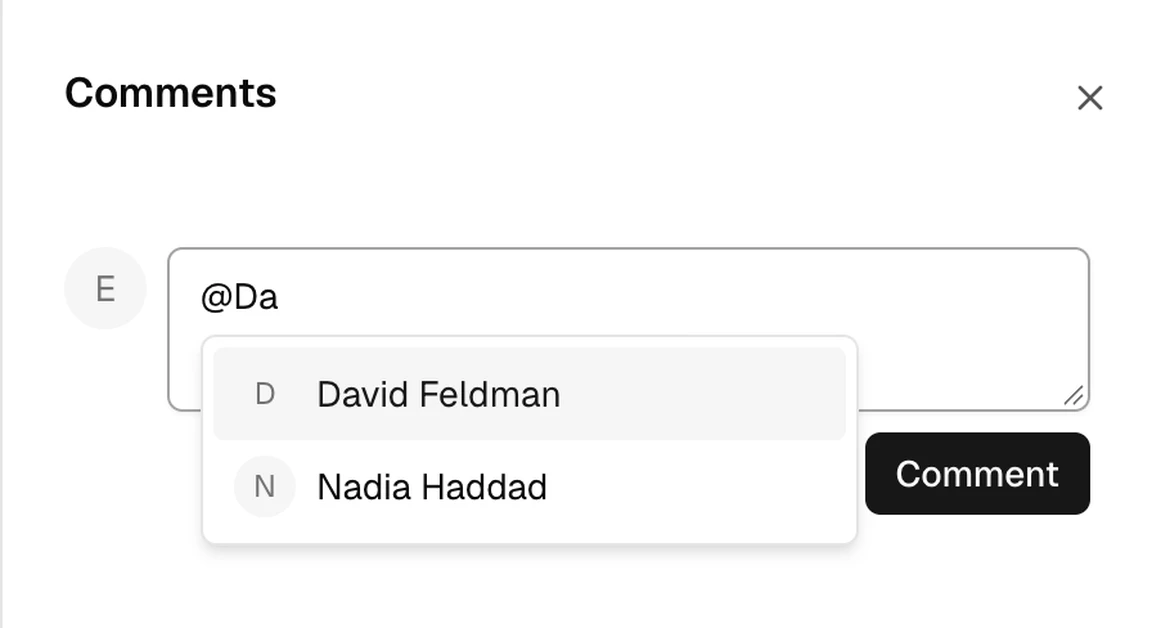
Observers can read comments, but not write them. Every other access level can comment.