Send the materials
A meeting’s materials are its agenda, the files attached to the agenda, and the records linked to it. Until you send the materials, attendees see only the meeting’s date and time. When you send them, Brava opens the materials to the attendees and emails each attendee to say they are ready.
Who can do this
Officers and above send the materials. See Access levels and permissions.
Before you begin
- The meeting must be scheduled. See Schedule a meeting.
- The agenda must have at least one item. See Build the agenda.
Send the materials
-
Open the meeting, and select Distribute materials.
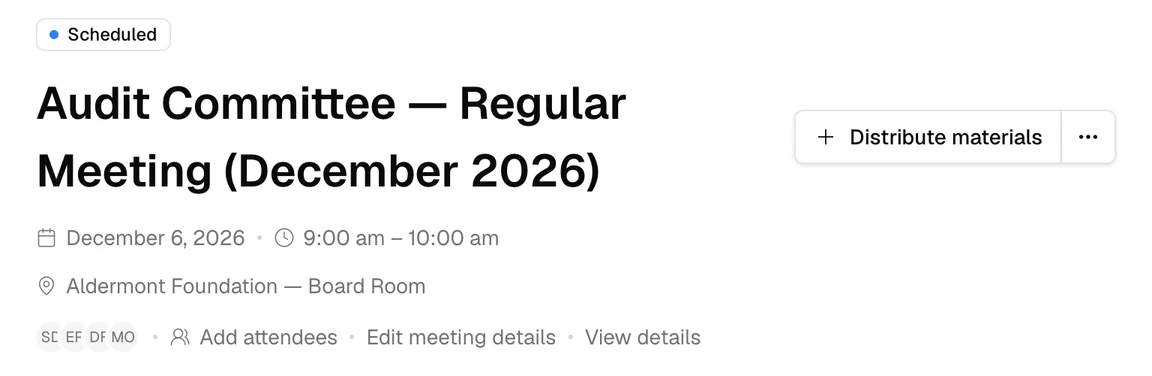
A scheduled meeting, with Distribute materials marked. -
Select Distribute materials again to confirm.
The top of the meeting now shows when you sent the materials, for example “Materials sent December 1, 2026 at 2:00 pm”.
What attendees receive
Each attendee who has an email address receives an email saying the materials are ready, with a button that opens the meeting. From then on, attendees can open the agenda, its files, and its linked records, read the board packet, and download the board book. See Read the board packet.
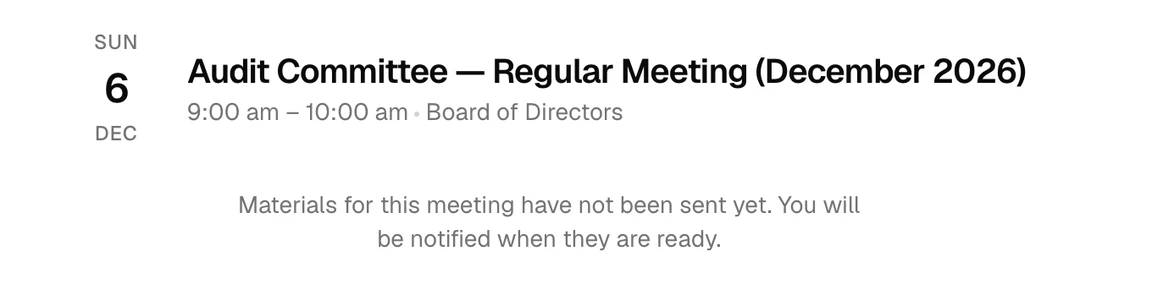
Before you send the materials, an attendee who opens the meeting sees this message instead:
Change the materials after you send them
Once the materials are sent, the agenda is locked. To change it, you withdraw the materials, make your changes, and send them again:
- Select More actions (⋯), then Withdraw materials, then Withdraw materials again. Attendees can no longer see the materials. Brava sends no email about this.
- Make your changes.
- Select Redistribute materials, then Redistribute materials again. Attendees receive the email again.
You do not need to withdraw the materials to change the meeting’s title, date, time, location, or link.
What can go wrong
I can’t select Distribute materials. Why?
The agenda needs at least one item. Add an agenda item first.
Someone didn’t get the email. Why?
If Brava could not deliver it, the top of the meeting says so, for example “Materials · 1 failed”. Contact Brava support to have it sent again.